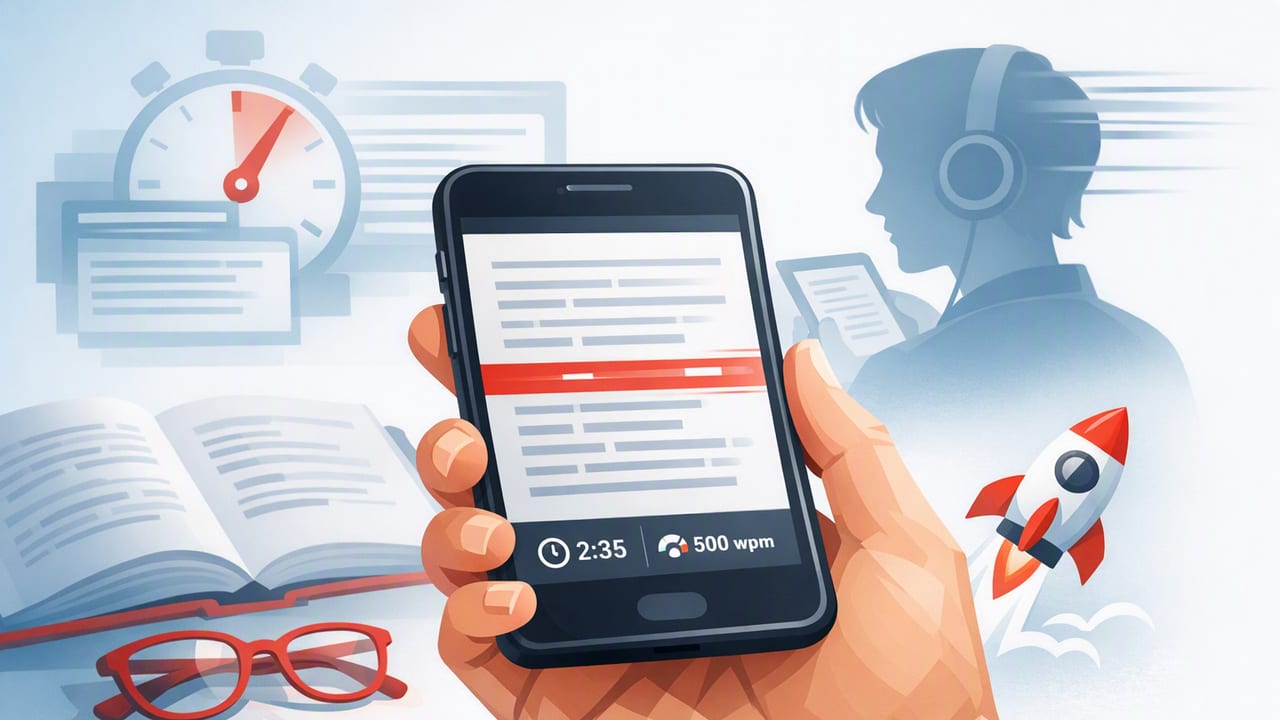
If you’re searching for the best app to read faster, the real win isn’t just a higher words-per-minute number—it’s finishing more reading with focus and comprehension intact. iPhone and iPad reading apps can absolutely help, but only if they provide the right tools and you set them up with a repeatable system.
This guide breaks down the features that matter, what to ignore, and a practical training plan you can follow on iOS to read faster without turning every session into a “speed test.”
What “read faster” should mean on iPhone and iPad
Most people think speed reading is only about pushing WPM (words per minute). In practice, sustainable progress usually comes from improving three things together:
- Pacing: reducing regressions (re-reading) and wandering attention.
- Visual efficiency: taking in more per fixation (without skipping meaning).
- Comprehension: keeping the main ideas, structure, and key details.
Speed without understanding is just scrolling. The best systems increase pace while protecting recall.
A checklist for choosing the best app to read faster
When evaluating speed reading apps for iPhone or iPad, look beyond marketing and scan for specific capabilities. Below is a feature checklist that maps directly to faster reading outcomes.
1) Strong pacing tools (the core of faster reading)
Pacing is the biggest lever for speed because it prevents two common slowdowns: subvocal drift (mentally “speaking” every word) and regressions (jumping back to re-read). Apps that help you pace well typically include:
- RSVP / Spritz-style mode (one word or chunk at a time at a controlled rate)
- Guided scrolling or line-by-line pacing for normal layouts
- Tap/hold controls to pause instantly (so you don’t lose comprehension)
2) Adjustable “chunking” and emphasis
Many people read faster when text is presented in meaningful chunks, not single words. Useful controls include:
- Words-per-chunk (or “chunk size”)
- Smart handling of punctuation (slight pauses at commas/periods)
- Optional emphasis for key parts of words (helps fixation and reduces eye movement)
3) Comprehension supports (so speed sticks)
The best app to read faster should actively help you remember what you read. Look for:
- Easy highlighting and export
- Built-in notes or quick capture of key takeaways
- Session stats that track both pace and consistency (not only peak WPM)
4) Content flexibility (what you actually read)
If an app is great in demos but can’t handle your real-world reading, it won’t become a habit. Confirm it supports:
- Web articles (share sheet import is ideal)
- PDFs and long documents
- Copy/paste text input for quick study blocks
- Offline access when you’re commuting or traveling
5) Focus-friendly UI and iOS integration
Speed gains disappear when you’re interrupted every 90 seconds. Favor apps that work well with:
- iOS Focus (so sessions stay uninterrupted)
- Readable themes (dark mode, sepia, or true black on OLED)
- Clean layouts with minimal chrome
Feature comparison table: what matters vs. what’s “nice to have”
| Feature | Why it matters for speed | What to look for |
|---|---|---|
| RSVP / paced mode | Reduces regressions and attention drift | Wide WPM range, instant pause, punctuation timing |
| Chunking controls | Improves meaning intake per fixation | Word grouping, adjustable chunk size, smart pauses |
| Import options | Ensures you can train on real material | Share sheet for articles, PDF support, paste input |
| Highlights/notes | Protects comprehension and recall | Fast capture, export, searchable notes |
| Progress stats | Helps you train consistently (not randomly) | Average WPM, streaks, time read, session history |
| Distraction controls | Focus is a prerequisite for speed | Minimal UI, works with Focus mode, clean typography |
How to set up your iPhone/iPad for faster reading (10 minutes)
Even the best app can’t fix a noisy environment. Use this quick setup to make reading sessions smoother.
Step 1: Turn on Focus for reading
- Open Settings → Focus.
- Create a “Reading” Focus (or customize an existing one).
- Allow only essential notifications.
Step 2: Reduce visual friction
- Settings → Accessibility → Motion → Reduce Motion (optional, but helpful for some).
- Settings → Display & Brightness: choose a comfortable theme; avoid extreme brightness in dark rooms.
- Set text size so you’re not squinting or scrolling constantly.
Step 3: Choose the right reading mode for the task
Use paced/RSVP mode for dense articles, study reading, and building consistency. Use normal layout (with highlights/notes) when structure and skimming matter (reports, textbooks, technical docs).
A simple way to measure speed without fooling yourself
To find the best app to read faster for you, you need a baseline that includes comprehension. Here’s a practical method:
- Pick a 700–1,200 word article you don’t know well.
- Read it once in your current style (no tricks).
- Write 3–5 bullets summarizing the main points from memory.
- Time the read and calculate WPM.
WPM = total_words / minutes

Example:
900 words / 4.5 minutes = 200 WPM
Comprehension check: If your bullet summary captures the thesis and 2–3 supporting points accurately, your speed is “real.” If not, slow down and build up gradually.
7-day training plan (15–20 minutes/day)
This plan is designed to build speed while keeping meaning. If you already use a speed reading app, you can start immediately.
Day 1: Baseline + comfortable pace
- Run the baseline test above.
- In paced mode, set WPM to a comfortable level (where comprehension feels stable).
- Do two 5-minute reads with a 1-minute break between.
Day 2: Add light speed pressure
- Increase WPM by 5–10% for the first 3 minutes.
- Return to comfortable pace for the last 7–10 minutes.
- Write a 2-sentence summary.
Day 3: Chunking practice
- Enable chunking (if available) or choose a mode that groups words.
- Keep WPM moderate; focus on reading in meaning units (phrases), not individual words.
- Highlight 3 key sentences (or capture 3 key notes).
Day 4: Comprehension-first session
- Read something slightly harder (nonfiction, technical article, class material).
- Lower WPM if needed, but keep pacing on.
- After reading, write: What’s the claim? What’s the evidence? What’s the takeaway?
Day 5: Interval training (speed bursts)
Intervals train your eyes/attention to tolerate faster pacing without panicking.
- 2 minutes at comfortable pace
- 1 minute at +15%
- 2 minutes comfortable
- 1 minute at +15%
- Finish with 5 minutes comfortable
Day 6: Real-work reading workflow
- Import something you actually need to read (work memo, research article, PDF).
- Use paced mode for the “middle” sections that normally drag.
- Switch to normal layout to review headings, charts, and key paragraphs.
Day 7: Retest + lock in a weekly routine
- Repeat the baseline test with a similar difficulty text.
- Compare average WPM and summary quality (not just peak speed).
- Decide on a sustainable cadence: e.g., 4 days/week paced reading + 1 day comprehension review.
Common mistakes that make “speed reading” not work
- Chasing peak WPM: A brief spike doesn’t translate to finishing books, studying better, or remembering more.
- Skipping structure: For long documents, headings and summaries matter. Speed tools should complement structure, not replace it.
- Training only on easy text: Mix in material that reflects your goals (school, work, professional learning).
- No recall step: If you never summarize, your brain learns “fast but forgettable.” Add a 60-second recap.
FAQ: choosing and using the best app to read faster
Is RSVP always better than normal reading?
No. RSVP is excellent for pacing and focus, especially on smaller screens, but normal layout can be better for scanning, diagrams, formulas, and revisiting specific sections. Many readers use both in the same session.
How fast can most people get without losing comprehension?
It varies by text difficulty and goal. A realistic target is improving your comfortable reading speed by 20–50% over a few weeks while keeping summary quality consistent. Some material (dense academic writing) will always require slower passes.
What’s the best app to read faster for students vs. professionals?
Students benefit most from highlighting, notes, and predictable training sessions; professionals often benefit from fast importing (share sheet), PDF support, and quick summaries. The best choice is the one that matches your daily inputs and keeps you in focus mode.
Putting it together
The best app to read faster is the one that (1) paces you, (2) supports comprehension, (3) fits your real reading sources, and (4) makes focused sessions effortless on iPhone and iPad. Combine the right features with a short training plan and you’ll see progress that actually transfers to school, work, and everyday reading.
If you’re experimenting with tools, one iOS option designed specifically around paced reading and focus is FocalRead—use it (or any comparable app) with the checklist and 7-day plan above for measurable results.
