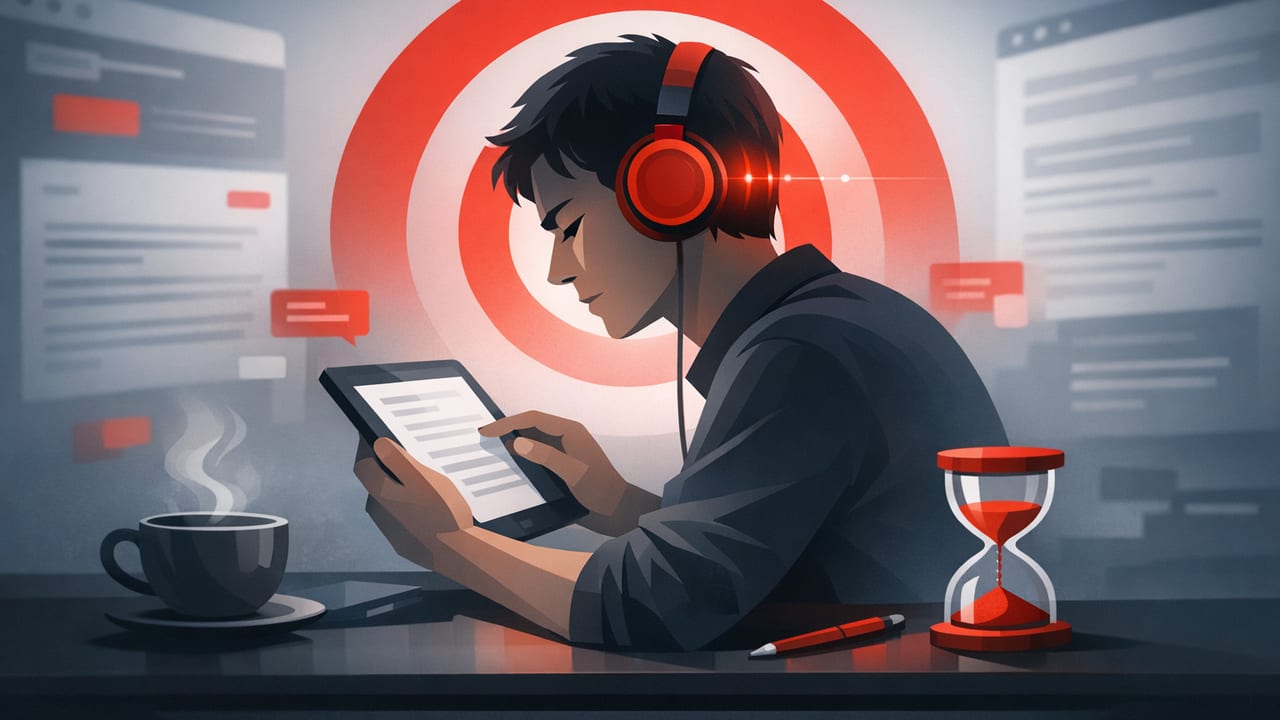
Reading on a screen should be easier than reading on paper: you can search, highlight, resize text, and carry a library in your pocket. Yet digital reading often feels harder because the environment is noisy—notifications, tabs, scrolling feeds, and the temptation to multitask. A focus mode for reading digital text is a deliberate setup that reduces distractions, stabilizes attention, and makes it easier to move through articles, PDFs, and study materials efficiently without sacrificing comprehension.
This guide walks you through a practical, repeatable system for iPhone and iPad: device settings, reading-friendly formatting, a simple pre-reading routine, and a few ways to measure whether your focus is actually improving.
What “focus mode for reading digital text” actually means
In practice, a focus mode is not just turning on Apple’s Focus feature. It’s a combination of:
- Environmental control (notifications, badges, interruptions, audio)
- Visual control (font, spacing, brightness, color temperature)
- Behavior control (a short routine that prevents mindless scrolling)
- Feedback (tracking time, pages, and comprehension)
When these align, you reduce “attention switching,” which is the hidden cost behind rereading paragraphs and losing the thread of an argument. Digital reading becomes smoother because your brain stops constantly re-orienting to new stimuli.
Step 1: Lock down interruptions (the highest ROI change)
Use iOS Focus intelligently (not aggressively)
On iPhone and iPad, create a dedicated Focus such as Reading:
- Go to Settings → Focus → + to create a new Focus.
- Allow notifications only from truly urgent sources (often: none).
- Customize Home Screen pages so only reading apps are visible during Reading Focus.
- Disable time-sensitive notifications if you tend to break concentration for them.
The goal isn’t isolation from real life; it’s removing low-value interruptions that fragment your reading session into dozens of micro-sessions.
Quick wins that prevent “just checking”
- Turn off notification badges for social and email apps (badges keep your attention “open”).
- Enable Do Not Disturb if you’re reading for a fixed block (20–45 minutes).
- Use a single reading destination (one app, one document) to reduce switching.
Reading focus isn’t about willpower. It’s about making distraction slightly inconvenient and reading slightly convenient.
Step 2: Optimize the screen for sustained attention
Visual friction (tiny font, harsh brightness, cramped lines) silently drains focus. On iOS, you can make digital text feel calmer and more “page-like,” which reduces fatigue and improves comprehension.
Recommended reading display settings
- Brightness: set it just bright enough to avoid squinting, not maxed out.
- True Tone / Night Shift: consider enabling to soften contrast, especially at night.
- Text size: increase to reduce eye strain; smaller text can encourage skimming without understanding.
- Bold Text (optional): helps some readers maintain line tracking.
- Reduce White Point (Accessibility): useful if white backgrounds feel glaring.
Prefer “clean text” views whenever possible
For web articles, use Reader view (Safari) to remove sidebars, pop-ups, and navigation. Those elements are designed for clicks, not comprehension.
For PDFs, try to use a view that supports comfortable zoom, stable page layout, and easy highlighting. The less you pinch-zoom and pan, the more attention stays on meaning rather than mechanics.
Step 3: Choose a reading method that matches your goal
Most people read every digital text the same way—slowly, line by line—then wonder why it’s hard to stay engaged. A focus mode works best when the reading method fits the purpose.
Three common goals (and the best method for each)
| Goal | Best approach | What to avoid |
|---|---|---|
| Understand an argument deeply | Preview → read → summarize in 2–3 sentences | Multitasking and skipping definitions |
| Extract key facts quickly | Scan headings, bullets, then targeted reading | Reading every paragraph equally |
| Get through volume (news, briefings) | Guided pacing / speed reading for the first pass | Rereading immediately (save for pass two) |
A strong focus mode for reading digital text includes a decision: “What am I doing with this text?” That decision reduces wandering attention because your brain knows what “done” looks like.
Step 4: Use a 60-second pre-reading routine (prevents drift)
This is a lightweight ritual that signals, “Now I read,” and it dramatically cuts the urge to jump between apps.
- Set a timer for 15–30 minutes (short blocks make starting easier).
- Preview structure: read the title, headings, intro, and conclusion (or abstract).
- Pick 1 question: “What problem is this solving?” or “What will I be able to explain after?”
- Decide the output: one highlight, one note, or a 2-sentence summary.
That’s it. You don’t need a complex workflow—just enough structure to keep your mind from hunting novelty.
Step 5: Keep your place to keep your focus
On screens, losing your place is easy: scroll momentum, ads loading, accidental taps, and layout shifts. Every “Where was I?” moment is a focus break. Reduce that with:
- Consistent line length (Reader view helps).
- Highlights as anchors, not as decoration.
- Section-by-section reading: finish a heading section, then pause for a 5-second recap.
The 5-second recap (micro-comprehension check)
After each section, ask: “If I had to explain this to someone right now, what would I say?” If you can’t answer, reread only the sentence that contains the key claim—not the whole section. This keeps the session moving while maintaining comprehension.
Step 6: Reduce temptation with a “distraction budget”
Many reading sessions fail because the rules are vague: “Don’t get distracted.” Instead, use a distraction budget: allow yourself one intentional break per session, at a planned time.
- Example: “I can check messages after 20 minutes.”
- When the urge hits, write a 3-word note (e.g., “reply to Sam”) and keep reading.
This works because your brain relaxes: it knows you’re not ignoring life forever; you’re postponing it with a plan.
Common distraction sources (and the best fix)
| Distraction source | What it looks like | Fix inside your reading focus mode |
|---|---|---|
| Notifications | “Quick glance” turns into app switching | Reading Focus + badge off for high-temptation apps |
| Visual clutter | Sidebars, recommended links, autoplay video | Reader view or clean reading layout |
| Unclear purpose | Skimming without retention | One question + one output (note/summary) |
| Fatigue | Rereading, zoning out | Short blocks, adjust brightness/text size, take a 2-minute break |
Optional: Automate your reading focus with Shortcuts
If you like frictionless habits, automate your setup so “starting reading” is one tap. You can create an iOS Shortcut that enables Reading Focus, opens your reading app, and starts a timer.
// Pseudocode outline for an iOS Shortcut
// Actions (in order):
// 1) Set Focus: Reading (On)
// 2) Set Brightness: 35%
// 3) Open App: Safari (or your reader/PDF app)
// 4) Start Timer: 25 minutes
// 5) (Optional) Show Notification: "Reading sprint started"
You can also trigger this automatically when you open a specific reading app (via Focus automation), which makes your focus mode for reading digital text feel effortless.
How to know if your focus mode is working
Focus can feel subjective, so use simple metrics for two weeks:
- Time-to-start: how long between “I should read” and actual reading?
- Interruptions per session: each app switch counts as one.
- Comprehension check: can you write a 2–3 sentence summary without looking?
- Throughput: pages or words per minute (only meaningful if comprehension holds).
If throughput rises but summaries get worse, the fix isn’t “try harder.” It’s usually one of: shorter sessions, better previewing, or slowing down on dense sections while speeding up on easy ones.
Putting it together: a simple reading session template
- Enable Reading Focus.
- Open your text in a clean view (Reader view when possible).
- Preview headings + pick one question.
- Read for 20–30 minutes with section recaps.
- End with a 2–3 sentence summary (notes app or highlights).
That sequence is intentionally short. Consistency beats complexity, and the best focus mode is the one you’ll actually use on a busy day.
When you want to read faster without losing comprehension
Once your distractions are under control, speed often improves naturally because you reread less. If you want an extra boost, experiment with guided pacing (where text is presented or paced to reduce regression). Start modestly: increase speed slightly, then validate comprehension using the summary method. Over time, your comfortable pace can rise while focus stays steady.
If you prefer to do this on iOS, you can explore a dedicated speed-reading tool like FocalRead as part of your broader reading focus setup.
