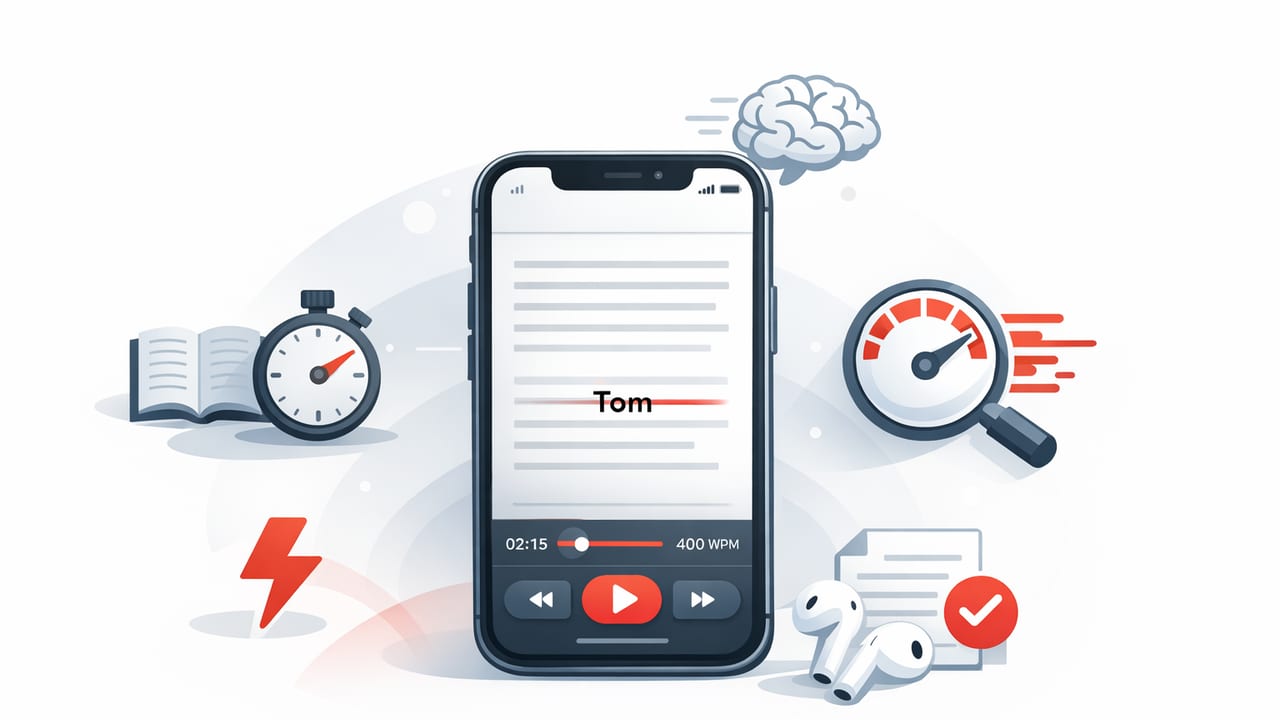
If you’ve ever downloaded a “speed reading” tool and uninstalled it a day later, you’re not alone. Many apps increase words-per-minute (WPM) on paper, but quietly reduce comprehension, create eye strain, or make it too hard to get your real reading (articles, PDFs, notes, reports) into the app. The goal isn’t just faster reading—it’s faster reading with control.
This guide shows you how to evaluate the best speed reading app for iOS in a way that matches real-life reading on iPhone and iPad. You’ll get a feature checklist, a 30-minute test plan, and practical settings that improve speed without sacrificing understanding.
What “best” actually means for speed reading on iOS
The best speed reading app for iOS is the one that helps you read faster and accurately, for the types of content you consume most. Before comparing features, define your primary use case:
- Students: textbooks, lecture notes, papers, research PDFs.
- Professionals: long emails, reports, memos, documentation, web articles.
- Avid readers: saved articles, newsletters, ebooks, long-form posts.
Once you know what you read, the evaluation becomes simpler: you’re looking for an app that (1) reduces friction to start reading, (2) improves focus, (3) supports speed techniques, and (4) keeps comprehension measurable.
Speed reading modes: which one fits your brain?
Most iOS speed reading apps offer one or more “presentation modes.” The mode you choose can matter as much as your WPM setting.
1) RSVP (Rapid Serial Visual Presentation)
RSVP displays one word (or a small cluster) at a time in a fixed spot. It can reduce eye movement and feel extremely fast for skimming or familiar topics.
- Pros: strong focus, easy to push WPM higher, good for short sessions.
- Cons: can hurt comprehension on dense material; backtracking can feel awkward.
2) Guided scrolling / pacing (line-by-line)
This keeps normal text layout but adds a pacer, highlight, or controlled scroll speed. It’s often better for technical reading, legal text, or anything you’ll revisit.
- Pros: natural reading, easier to re-scan, better for deep understanding.
- Cons: may not reach the highest WPM numbers, depends on typography quality.
3) Chunking (phrases at a time)
Some apps show 2–5 words at once (“chunks”). This can be a sweet spot: faster than normal reading, but with more context than single-word RSVP.
Rule of thumb: If you read to decide (scan, triage, overview), RSVP can be great. If you read to understand (study, analyze, remember), choose chunking or paced layout.
A practical checklist: features that matter (and why)
When people search for the best speed reading app for iOS, they often compare “max WPM” or flashy modes. In practice, these are the features that decide whether you’ll keep using the app for more than a week.
1) Fast importing (zero-friction reading)
Look for multiple ways to get text in:
- Share Sheet support (from Safari, Notes, Mail, Files).
- PDF import from Files or cloud storage.
- Paste text quickly for short items.
- Clean article extraction for web pages (removes clutter).
2) Comprehension controls (not just speed controls)
Speed increases should be adjustable with guardrails:
- Instant pause/play and easy backtrack (by word, sentence, or paragraph).
- Variable speed (slow down for headings, numbers, citations).
- Tap-to-repeat the last phrase or sentence.
3) Focus features that reduce cognitive noise
On iOS, your biggest “reading enemy” is often attention switching, not slow eyes. Useful focus features include:
- Distraction-free view (minimal UI, no clutter).
- Dark mode and typography controls (font, size, spacing).
- Timer or session goals (e.g., 10-minute sprint).
- Offline reading for airplane mode focus.
4) Progress and measurement you can trust
Without feedback, “faster” becomes guesswork. Look for:
- WPM tracking per session and per text.
- Time-to-finish estimates that update as you adjust speed.
- History (what you read, when, for how long).
5) iPad-first usability (if you read long-form)
If you do serious reading on iPad, check for:
- Split View / Stage Manager compatibility (reading + notes).
- Apple Pencil-friendly highlighting/annotation (if supported).
- External keyboard shortcuts (space to pause, arrows to backtrack).
Comparison table: how to evaluate apps quickly
Use the table below as a scorecard. You can literally test most of this in one sitting.
| Criterion | Why it matters | How to verify in 2 minutes |
|---|---|---|
| Import via Share Sheet | Reading only works if you can start instantly | Share a Safari article into the app; confirm clean formatting |
| PDF handling | Many “speed readers” fail on real documents | Open a PDF from Files; check zoom, text extraction, navigation |
| Backtrack controls | Comprehension requires quick re-checking | During playback, rewind 5–10 seconds/words and resume smoothly |
| Mode options (RSVP/chunking/paced) | Different texts require different presentation | Switch modes on the same text; note comfort and understanding |
| Typography & theme controls | Eye strain kills consistency | Change font, spacing, dark mode; confirm readability at night |
| Session tracking | You improve what you measure | Finish a short text; check if WPM/time is logged automatically |
The 30-minute test plan (so you don’t pick the wrong app)
Instead of relying on app store screenshots, run a short, repeatable test on two or three candidates. You’ll get a clear winner fast.
- Pick two real texts you actually read:
- One easy/medium article (~800–1200 words)
- One dense text (PDF page, research section, policy memo)
- Baseline your normal reading for 3 minutes on the easy text. Note: did you feel distracted? Did you re-read lines?
- Test Mode A (RSVP or chunking) at a conservative speed (e.g., 250–350 WPM). Increase by 25–50 WPM only if comprehension feels stable.
- Run a comprehension check (write 3 bullet points from memory):
- Main claim
- Two supporting details
- Any numbers, dates, or constraints (if applicable)
- Repeat on the dense text using a paced layout or chunking mode. If you can’t backtrack easily, that’s a red flag.
- Score friction: How many taps did it take to import? To resume? To find where you left off?
If an app boosts your speed but makes you avoid reading dense material, it’s not the best speed reading app for iOS for you. The winner is the one you’ll use on your hardest content.
Settings that reliably improve speed without wrecking comprehension
Most people jump straight to high WPM and then blame themselves when it doesn’t stick. Try these settings first:
- Start slower than you think: If you read ~200 WPM normally, begin speed practice at 240–280 WPM.
- Use variable speed: Slow down for headings, lists, formulas, and names; speed up on narrative sections.
- Prefer chunks for nonfiction: 2–4 word chunks often preserve meaning better than single-word RSVP.
- Add micro-pauses: A slight pause at sentence ends improves retention with minimal time cost.
- Make backtracking easy: If rewind is annoying, you’ll “power through” confusion and lose the plot.
Build a simple habit: the “triage then deep read” workflow
Speed reading is most effective when you separate deciding what matters from studying what matters. Here’s a lightweight workflow that fits iPhone or iPad:
- Triage (fast): Use RSVP/chunking to skim and mark sections worth deeper attention.
- Deep read (steady): Switch to paced layout for the important 20–30%.
- Recall (1 minute): Write a 2–3 sentence summary or 5 keywords. This is where comprehension becomes durable.
Optional: log your reading sessions with iOS Shortcuts
If your chosen app doesn’t provide the tracking you want, you can still measure consistency. A simple log helps you see whether your “best” app is actually building a habit.
# Pseudocode for an iOS Shortcut-style logging flow
# Goal: Append a line to a CSV in Files after each reading session

Ask for Input: "Minutes read today?" (Number)
Ask for Input: "Estimated WPM?" (Number)
Ask for Input: "Content type" (Choose: Article, PDF, Notes, Email, Other)
Get Current Date
Text: "{Date},{Minutes},{WPM},{ContentType}"
Append to File: /Shortcuts/reading_log.csv
Show Result: "Logged. Keep it small and consistent."
You don’t need perfect analytics—just enough feedback to spot patterns (for example, you might read faster on iPad in the morning, or comprehend better with chunking at night).
Red flags: when a speed reading app looks good but fails in practice
- Great demo text, poor real-world importing (especially PDFs).
- Hard to pause/backtrack, forcing you to lose comprehension momentum.
- No comfort controls (font, spacing, themes), leading to fatigue.
- Speed-first UI that encourages chasing WPM instead of understanding.
Quick decision rule
After testing, choose the app that meets these three conditions:
- It reduces friction (import + resume are effortless).
- It supports control (backtrack, variable speed, mode switching).
- It protects comprehension (your summaries stay accurate as speed increases).
That’s how you end up with the best speed reading app for iOS—not the one with the highest advertised WPM, but the one that reliably converts your reading time into usable understanding.
Note: If you’re comparing a few iPhone/iPad options, you can run the exact test plan above in FocalRead as well, using the same texts and scoring method to keep your choice evidence-based.
