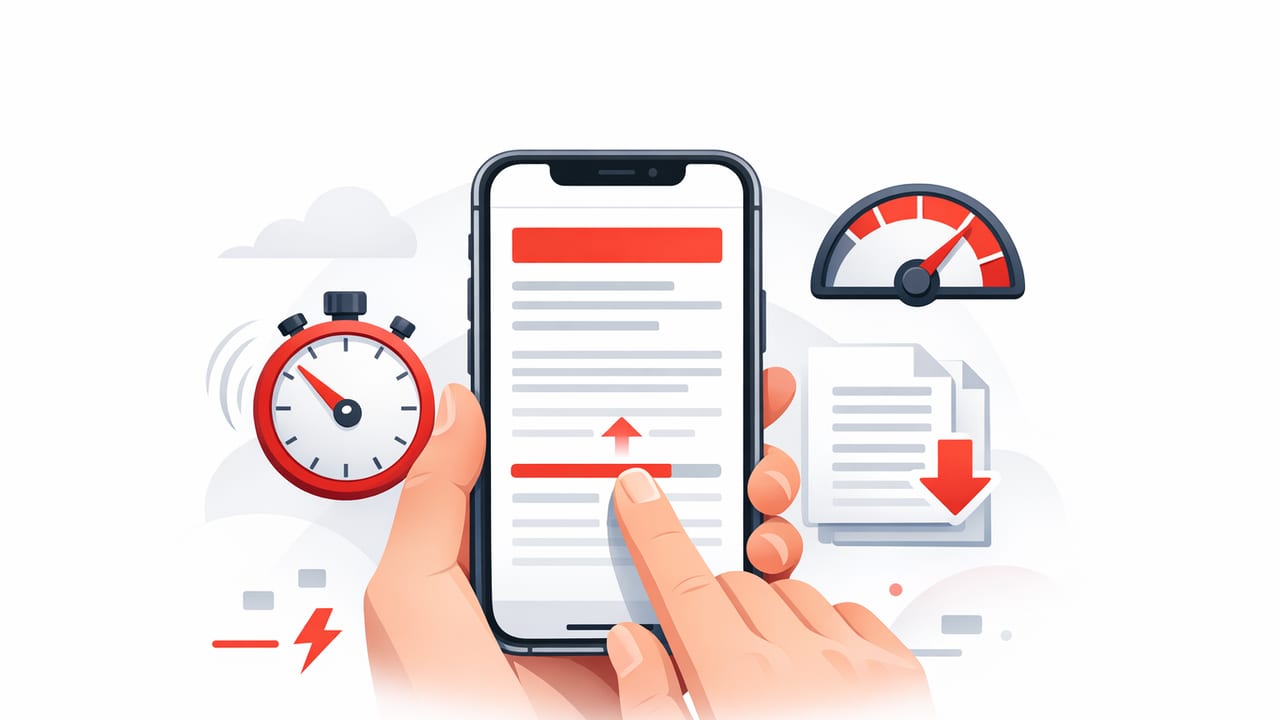
If your reading list keeps growing, the goal isn’t just to skim harder—it’s to build a system that makes reading easier on a small screen. This guide shows a practical, repeatable way to read articles faster on iPhone while keeping comprehension high. You’ll combine iOS settings, a distraction-free reading setup, and a few speed reading techniques that work particularly well for digital text.
Why iPhone reading feels slow (and what to fix first)
Most people assume they read slowly because they “aren’t fast readers.” On iPhone, the bigger culprits are environmental:
- Distractions: notifications, open tabs, and visual clutter compete for attention.
- Poor formatting: ads, sidebars, and tiny line spacing increase eye fatigue.
- Frequent re-reading: you lose your place, then backtrack to regain context.
- No clear intention: reading without a purpose leads to wandering focus and low retention.
So the first step isn’t “read faster.” It’s reduce friction, then apply speed techniques.
Step 1: Set up a distraction-free iPhone reading environment
Use Reader Mode whenever possible
In Safari, tap the aA button in the address bar, then choose Show Reader. This removes most clutter and makes scanning easier. In Reader, adjust:
- Font size (slightly larger is often faster because it reduces strain).
- Background (use a warm theme at night to reduce fatigue).
- Line width (Reader Mode often optimizes this automatically).
Silence interruptions for a short sprint
Speed reading works best in short, focused blocks. Before you start:
- Turn on Focus (e.g., Work/Study) to silence notifications.
- Set a timer for 10–15 minutes (short enough to maintain intensity).
- Put your iPhone in Do Not Disturb if you’re easily pulled away.
Increase readability with one accessibility tweak
Try Settings → Accessibility → Display & Text Size and enable one of these if it helps:
- Increase Contrast (clearer text edges).
- Reduce White Point (less glare for long sessions).
Small comfort gains compound when you read daily.
Step 2: Use a “purpose-first” reading method (saves time immediately)
Reading faster doesn’t mean reading everything at the same speed. Use three gears:
| Reading gear | When to use it | What you do |
|---|---|---|
| Preview (30–90 seconds) | Every article | Read the headline, subheads, intro, conclusion, and scan visuals |
| Skim (2–6 minutes) | Most articles | Read topic sentences, bolded lines, and key examples |
| Deep read (as needed) | High-stakes content | Slow down for definitions, arguments, data, and steps you’ll use |
The biggest time-saver is giving yourself permission to not deep read everything. Preview first; then decide.
Step 3: Apply speed reading techniques that work well on iPhone
1) Stop subvocalization (without “fighting” it)
Subvocalization is the habit of silently pronouncing words. You don’t need to eliminate it completely, but you can reduce it by:
- Using a quicker visual pace: move your eyes with intention instead of letting them drift.
- Chunking: aim to take in 2–4 words at a time (phrases), not single words.
- Light tactile anchor: rest a finger on the bottom of the screen and scroll steadily (a “metronome” effect).
2) Use a pacer to prevent backtracking
Backtracking (re-reading the same line) is one of the biggest hidden speed killers. On iPhone, your pacer can be:
- Your thumb scrolling at a steady rhythm.
- A stylus or finger guiding your attention down the page.
It feels almost too simple, but it works because it keeps your eyes moving forward.
3) Read in “screenfuls” (mini targets)
Instead of thinking “I have to read this whole article,” aim for:
- One screenful at a time
- Then a quick 2-second pause: “What did I just learn?”
This creates micro-comprehension checks that reduce re-reading later.
Step 4: Make comprehension measurable (so speed doesn’t become sloppy)
To read faster without losing meaning, add a tiny recall step. After you finish an article, write (or say) three bullets:
- Main claim: What is the author really saying?
- Key support: What evidence/examples mattered most?
- Action/insight: What will you do or remember?
If you can’t produce those bullets in under 30 seconds, you probably read too fast for that piece—or you didn’t preview well enough.
Step 5: Build an iPhone workflow that removes “reading friction”
Use a Read Later queue (and keep it small)
A giant list becomes psychological clutter. Keep a tight pipeline:
- Queue: 10–20 articles max
- Archive: anything you won’t realistically read this week
When you know your queue is curated, you approach reading with less resistance.
Create a “two-pass” routine for long articles
Long reads are where iPhone fatigue hits hardest. Use two passes:
- Pass 1 (3–5 minutes): Preview + skim to map the structure
- Pass 2 (5–15 minutes): Deep read only the sections you actually need
This prevents the common mistake of deep reading paragraphs that don’t contribute to your goal.
A simple iOS Shortcut idea: “Clean article + start sprint”
If you use the Shortcuts app, you can build a one-tap routine that encourages focused reading. Here’s a conceptual example (names vary by iOS version and apps):
// Pseudo-Shortcut steps
1) Get Article from Safari (Share Sheet)
2) Show Web Page (Reader Mode if available)
3) Set Focus Mode: Work (or Reading)
4) Start Timer: 12 minutes
5) Open Notes: create note titled "Article Takeaways"
Even if you don’t automate it, copying this flow manually (Reader Mode → Focus → timer → 3 bullets in Notes) is enough to increase speed and retention.
Common mistakes when trying to read faster on iPhone
- Going fast too early: If you skip previewing, you’ll re-read more later.
- Reading everything at one speed: Use gears—preview, skim, deep read.
- Ignoring eye fatigue: Micro-breaks (10 seconds) can keep your pace stable.
- Equating speed with productivity: The win is useful comprehension, not raw WPM.
A 7-day plan to read noticeably faster (and feel in control)
Day 1: Baseline + setup
- Pick one article and time your normal pace.
- Turn on Reader Mode and try one Display/Text accessibility tweak.
Day 2: Preview habit
- Preview 5 articles for 60 seconds each.
- Choose only 1 to deep read.
Day 3: Pacer practice
- Read for 10 minutes using steady thumb scrolling.
- Notice how often you backtrack; aim to reduce it.
Day 4: Chunking
- For one session, intentionally read in 2–4 word phrases.
- Don’t worry about perfection—just nudge the habit.
Day 5: Two-pass reading
- Take one long article.
- Pass 1: skim structure. Pass 2: deep read only what matters.
Day 6: Comprehension check
- After each article, write the 3 bullets (claim, support, action).
- If you struggle, slow down slightly on the next piece.
Day 7: Combine into one “reading sprint”
- Set Focus + 12-minute timer.
- Reader Mode on.
- Preview → skim → deep read (as needed) → 3 bullets.
By the end of the week, most people notice they finish more articles with less mental drag—and better recall.
Quick checklist: the fastest way to read articles on iPhone
- Reader Mode to remove clutter
- Focus + timer for a short sprint
- Preview first (decide the right gear)
- Pace your eyes with steady scrolling
- 3-bullet recap to lock comprehension
Principle: Speed is a result of clarity—clear layout, clear intention, and clear structure.
When an app can help
If you read constantly for school or work, a dedicated reading tool can make the “clean text + controlled pace” approach easier to maintain. For iPhone and iPad users, apps like FocalRead are built around focus-friendly reading modes that support faster on-screen reading habits.
