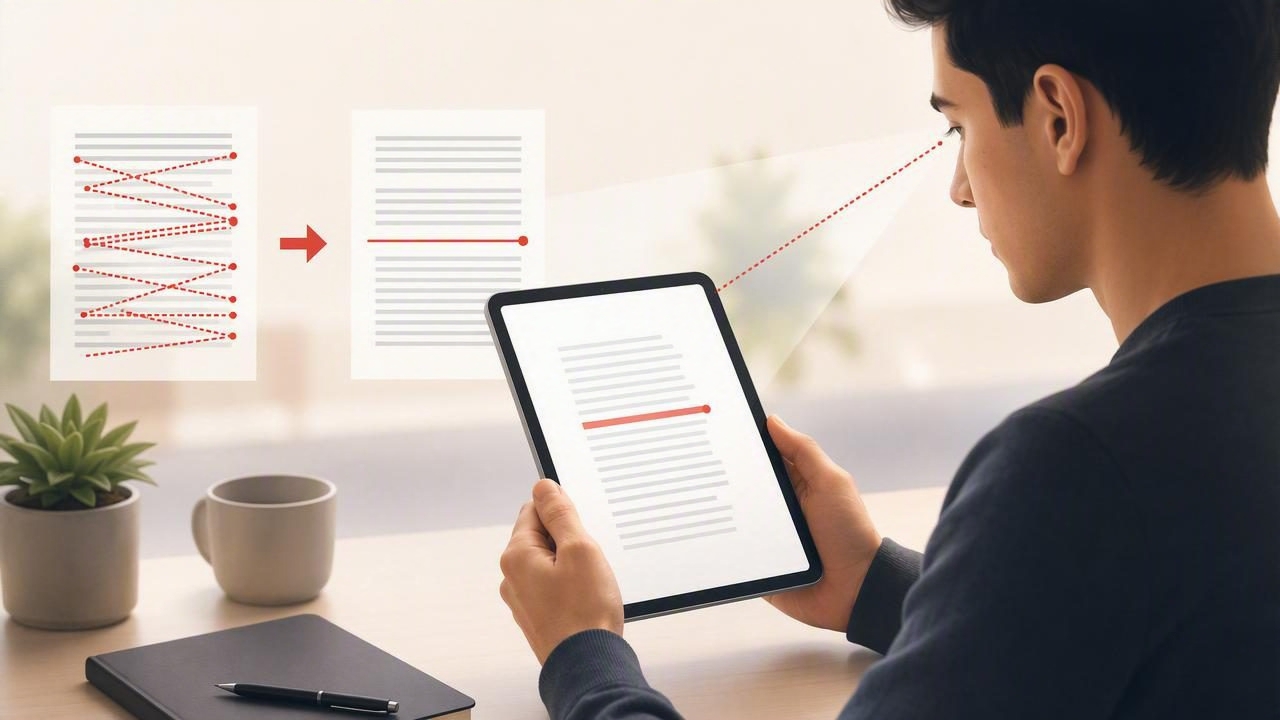
When a PDF feels slow to read, the problem is not always the complexity of the content. Often, the real issue is unnecessary eye movement: wandering across a line, repeatedly jumping backward, losing your place, or scanning page elements that do not matter. These small interruptions add up, making digital reading feel tiring and inefficient.
Learning how to reduce unnecessary eye movement with a PDF speed reader can help you move through reports, textbooks, research papers, work documents, and study materials with more control. The goal is not to force yourself to race through every page. It is to make each eye movement more purposeful so you can read at a pace that supports both productivity and comprehension.
This guide explains why eye movement matters, which reading behaviors slow you down, and how to use a PDF speed reader on iPhone or iPad to create a more focused reading workflow.
Why Eye Movement Has Such a Big Effect on Reading Speed
Reading is not a smooth, continuous visual process. Your eyes move in quick jumps called saccades, followed by brief stops called fixations. During a fixation, your brain processes the words in view. During a saccade, your eyes move to the next useful point on the page.
Efficient readers tend to make fewer, more deliberate fixations. Inefficient reading often includes:
- Stopping on nearly every word instead of recognizing short word groups.
- Re-reading the same line because attention drifted.
- Jumping back to earlier text without a clear reason.
- Scanning too far to the left and right margins on every line.
- Getting distracted by headers, footnotes, links, toolbars, and page clutter.
These movements may seem minor, but they create friction. Every unnecessary pause requires your brain to reorient itself. On a dense PDF, that can lead to slower reading, lower focus, and more mental fatigue by the end of a session.
Speed reading is not about making your eyes move wildly faster. It is about removing movements that do not help you understand the text.
Common PDF Habits That Create Extra Eye Movement
PDFs can be particularly demanding because they preserve a fixed page layout. Unlike responsive articles, a PDF may use narrow columns, small type, visual sidebars, charts, footnotes, and irregular spacing. Without a deliberate approach, your eyes can spend more time navigating the page than reading its ideas.
Reading Every Word With the Same Level of Attention
Not every word carries equal meaning. Articles, reports, and academic papers contain connecting words, examples, repeated claims, and supporting details. If you give every word the same visual attention, your reading pace becomes unnecessarily slow.
Instead, train yourself to identify meaningful word groups. For example, rather than fixating separately on “the,” “team,” “completed,” “the,” and “analysis,” aim to recognize “the team completed the analysis” as a compact phrase.
Frequent Unplanned Regression
A regression is a backward eye movement. Some regressions are useful: you may return to a definition, a statistic, or a complex sentence. The problem is unplanned regression, when you repeatedly move backward because your attention was split or you lost your place.
Digital distractions, poor text size, reading while tired, and trying to read too quickly can all increase regressions. A good PDF reading setup should make your current reading position obvious and reduce the temptation to repeatedly check previous lines.
Using an Uncomfortable Zoom Level
Text that is too small causes strain and encourages slow, word-by-word reading. Text that is too large can be just as disruptive because each line contains only a few words, forcing excessive line returns. The best zoom level lets you comfortably see a useful phrase or short line without squinting or making constant horizontal adjustments.
How a PDF Speed Reader Helps Control Visual Attention
A PDF speed reader does more than display a document. It can create a constrained reading environment that guides your attention through the text. Depending on the tool and reading mode, this may include controlled pacing, focus displays, chunked text, line highlighting, or rapid serial visual presentation (RSVP).
These features can reduce unnecessary eye movement because they limit the amount of visual searching you need to do. Instead of repeatedly locating the next word or line, the reading interface gives your eyes a clearer target.
| Reading challenge | Helpful PDF speed reading approach | Potential benefit |
|---|---|---|
| Losing your place on long pages | Use a moving focus line or highlighted text | Fewer accidental backward jumps |
| Reading one word at a time | Practice phrase-based chunking | More information per fixation |
| Constantly scanning page margins | Use a focused or center-weighted display | Less horizontal eye travel |
| Skipping ahead too quickly | Set a controlled words-per-minute pace | More consistent comprehension |
| Getting distracted by the PDF layout | Hide nonessential interface elements | Stronger visual focus |
A Practical Workflow to Reduce Eye Movement While Reading PDFs
The best results come from combining the right app settings with a repeatable reading process. Use the following workflow when you need to read efficiently without turning the task into a comprehension gamble.
1. Preview the PDF Before You Start Reading
Spend one or two minutes orienting yourself. Look at the title, headings, section lengths, executive summary, charts, and conclusion. If it is an academic paper, identify the abstract, methods, results, and discussion sections.
This preview gives your brain a map of the document. Once you know where the important information is likely to appear, you are less likely to scan aimlessly or repeatedly go back to find context.
2. Define Your Reading Purpose
Ask one simple question: What do I need from this PDF? Your answer determines the appropriate pace.
- For a quick overview: focus on headings, topic sentences, summaries, and conclusions.
- For study: slow down for definitions, processes, examples, and material likely to appear in an exam.
- For work: prioritize decisions, deadlines, recommendations, risks, and action items.
- For research: capture claims, evidence, methodology, and source details.
Purposeful reading reduces random re-reading. You know what deserves attention and what can be skimmed with confidence.
3. Set a Comfortable Starting Speed
If your PDF speed reader lets you choose a pace, begin below your maximum. A useful starting point for many readers is a speed that feels slightly challenging but not frantic. You should still be able to summarize the previous paragraph in your own words.
After a few minutes, check your understanding. If you can identify the main point and one or two supporting details, increase the pace gradually. If you are retaining only fragments, slow down. Speed should serve comprehension, not replace it.
4. Read in Phrases, Not Isolated Words
Phrase reading is one of the most practical ways to reduce unnecessary eye movement. Your eyes do not need to land on every individual word for your brain to understand a familiar sentence pattern.
Try grouping text into meaningful units:
Slow pattern:   The | project | will | begin | next | Monday
Phrase pattern: The project | will begin | next Monday
At first, this may feel uncomfortable. That is normal. You are changing a reading habit that may have been automatic for years. Practice with simpler material before using the technique on dense legal, scientific, or technical PDFs.
5. Use Short Focused Reading Intervals
Long reading sessions can cause attention to fade, which increases regressions and skipped lines. Instead of forcing yourself through an hour of uninterrupted reading, work in short intervals of 15 to 25 minutes.
At the end of each interval, pause and write or say a short summary:
- What was the section mainly about?
- What evidence or examples mattered most?
- What should I remember or do next?
This habit strengthens comprehension while making you less dependent on repeatedly looking back at earlier pages.
Adjust Your iPhone or iPad for Easier PDF Reading
Your device setup can either support focus or create extra work for your eyes. A few practical adjustments can make a noticeable difference.
- Use a readable text size: Avoid tiny text, but do not zoom so far in that every sentence becomes multiple short lines.
- Choose a comfortable brightness level: Screen glare and very high brightness can cause visual fatigue.
- Try landscape orientation: It may provide wider lines and reduce frequent vertical scrolling for some documents.
- Use portrait orientation for narrow columns: This can prevent overly wide lines that are difficult to track.
- Turn off notifications: Every alert breaks attention and makes it more likely that you will lose your place.
- Use a stand when possible: Keeping an iPad at a comfortable viewing angle can reduce neck strain during longer sessions.
Experiment with these settings rather than assuming one setup works for every PDF. A presentation deck, journal article, and financial report may each benefit from a different view.
When You Should Slow Down Instead
Reducing eye movement does not mean eliminating all pauses. Some text deserves careful, slower attention. Slow down when you encounter:
- New terminology or unfamiliar concepts.
- Equations, data tables, charts, or diagrams.
- Instructions with multiple required steps.
- Important contractual, medical, financial, or legal information.
- Arguments that you need to evaluate critically.
A flexible reader changes pace based on the task. Skim context, read core ideas at a steady pace, and pause for information that requires analysis. This is more effective than trying to maintain one words-per-minute target from the first page to the last.
Build the Skill With Consistent Practice
Better visual reading habits develop gradually. Start with 10 to 15 minutes a day, using PDFs that are interesting but not overly difficult. Track more than speed: notice whether you lose your place less often, feel less tired, and can recall the main ideas without checking the document.
Over time, you can increase difficulty by reading longer documents, raising the pace slightly, or practicing with more technical material. The most useful measure of progress is not simply how fast you finish. It is how efficiently you can extract, understand, and remember what matters.
Final Takeaway
To reduce unnecessary eye movement with a PDF speed reader, focus on controlled pacing, phrase-based reading, a clear reading purpose, and short comprehension checks. Eliminate visual distractions, choose a comfortable display setup, and allow yourself to slow down when the material demands it.
With regular practice, a focused iPhone or iPad reading tool such as FocalRead can support a more intentional approach to digital documents—helping you spend less time searching across the page and more time understanding the ideas in front of you.
