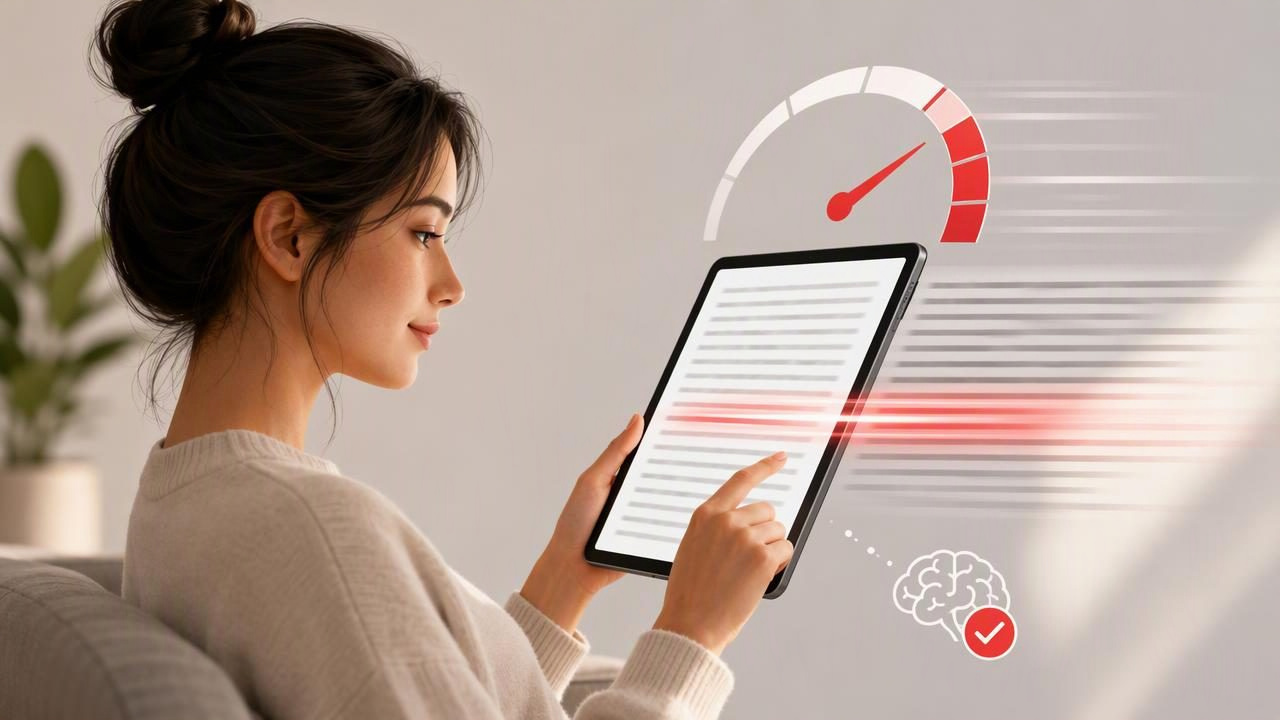
When a long article, study chapter, report, or ebook feels overwhelming, speed reading mode can make digital text feel more manageable. Instead of repeatedly moving your eyes across crowded lines, a speed reading format presents words in a more controlled way. The goal is not to race through every document at the highest possible pace. It is to reduce visual friction, maintain attention, and move through suitable material more efficiently.
Learning how to turn text into speed reading mode starts with choosing the right text, setting a realistic pace, and checking whether you still understand what you read. A fast display setting is useful only when it supports the purpose of your reading: learning, reviewing, researching, or simply enjoying a book.
What Does It Mean to Turn Text Into Speed Reading Mode?
Speed reading mode usually changes how text appears on screen. A common format is RSVP, short for Rapid Serial Visual Presentation. Instead of showing a full page or paragraph, RSVP displays one word, or a very small group of words, at a time in the same screen position.
This presentation can reduce the need for eye movements across each line. It may also help readers stay with the current sentence instead of visually jumping ahead, rereading the previous line, or becoming distracted by surrounding content.
Other reading modes may use focused line highlighting, larger type, reduced margins, or a cleaner screen. These approaches can also support faster reading, especially for people who prefer to see context around the current sentence.
Choose Text That Works Well in Speed Reading Mode
Not every document should be read at the same pace. Before converting text, consider why you are reading it. A news recap and a dense legal agreement require very different levels of attention.
| Type of text | Good fit for speed reading? | Suggested approach |
|---|---|---|
| News articles and blog posts | Often yes | Use a moderate pace and pause for key statistics or quotes. |
| Familiar work documents | Often yes | Read quickly for the main point, then revisit action items. |
| Fiction and casual ebooks | Sometimes | Use a comfortable speed that preserves rhythm and enjoyment. |
| Study notes and review material | Yes, with checks | Pause after each section and summarize what you remember. |
| Technical papers or textbooks | Limited | Use speed mode for introductions or familiar sections, not every detail. |
| Contracts, instructions, and safety information | Usually no | Read deliberately and review important wording carefully. |
A useful rule is simple: speed reading mode works best when you are trying to understand the main argument, sequence, or story. Slow down when a sentence contains a definition, a calculation, an unfamiliar concept, or a decision with consequences.
Prepare the Text Before You Start
Turning text into speed reading mode is easier when the document is clean and readable. Start by importing or opening a digital file in a supported format. Common reading files include PDF, EPUB, MOBI, TXT, DOCX, and non-DRM AZW3. Copying plain text from an article can also work well when a file is not available.
Before pressing play, remove distractions that compete for your attention. Turn on Do Not Disturb if appropriate, close unrelated tabs, and choose a comfortable screen brightness. On an iPhone, larger text and a simple layout can make a short reading session easier to maintain. On an iPad, the larger display may be useful when you want to review the original page alongside your speed reading view.
It also helps to scan the document first. Look at the title, headings, introduction, conclusion, and any charts or tables. This quick preview gives your brain a framework for the information that follows. Speed reading is generally more effective when you know what the text is trying to explain.
Set a Starting Pace You Can Actually Understand
One of the biggest mistakes is choosing an ambitious words-per-minute setting before you know whether you can retain the material. There is no universal target that works for every reader or every type of text. Your useful speed depends on vocabulary, fatigue, subject knowledge, screen size, and the complexity of the document.
Start slightly above your normal comfortable reading pace rather than jumping to an extreme setting. Read a short passage, then stop and test yourself. If you can explain the main point in your own words, the pace may be appropriate. If you remember isolated words but cannot describe the argument, reduce the speed.
A productive reading pace is the fastest speed at which you can still explain what you just read.
Use punctuation as a guide. A sentence with commas, parentheses, or technical terms may need more time than a simple sentence. If your reader allows pause adjustments, give longer pauses to paragraph breaks and headings. These small changes can improve comprehension more than simply increasing the overall speed.
A Concrete Example: Converting a Study Article
Imagine you need to read a 1,200-word psychology article before class. You have already read the title and identified three headings: memory, attention, and practice. Rather than trying to finish it in one rapid pass, use speed reading mode in short sections.
- Read the introduction at a moderate pace. Your purpose is to identify the article's central question.
- Pause after the first heading. Ask yourself: “What does the author say memory depends on?”
- Continue through the next section. Slow down for unfamiliar terms and examples.
- Write a one-sentence summary. For example: Attention helps move information from a brief impression into usable learning.
- Finish the final section and review your notes. If you cannot connect the three headings, reread only the unclear part.
This method is more useful than treating speed reading as a test of endurance. You are using the display mode to keep moving, while deliberate pauses protect learning. For study material, a short summary after each section is often more valuable than adding another 50 words per minute.
Use Comprehension Checks, Not Just a Timer
Reading quickly can create the feeling of progress even when details have not been retained. That is why comprehension checks should be part of every speed reading session, particularly for students and professionals reading material they may need to use later.
Try these quick checks
- State the main idea without looking at the screen.
- Name two supporting points from the section.
- Explain an unfamiliar term in plain language.
- Predict what the next section is likely to cover.
- Write one question you still need to answer.
For a work report, your check could be: “What decision is this report asking for?” For a textbook chapter, it could be: “What process did this section describe, and what are its steps?” These questions turn passive scrolling into active reading.
Adjust the Display for Focus on iPhone and iPad
Display comfort affects how long you can use speed reading mode. If words feel crowded or tiring, lowering the pace may not be enough. Adjust the visual setup before assuming the method is not working.
- Font size: Choose a size that is easy to recognize without squinting.
- Contrast: Use a theme that remains comfortable in your current lighting.
- Session length: Start with 10 to 15 minutes, then take a short break.
- Orientation: Try portrait mode for focused single-word reading and landscape when reviewing wider documents.
- Notifications: Silence nonessential alerts before beginning a reading block.
Keep in mind that fatigue changes your usable pace. A speed that feels clear in the morning may be too fast after a long day of lectures or meetings. Adjusting your settings is not a setback; it is part of building a sustainable reading habit.
Know When to Leave Speed Reading Mode
Speed reading mode is a tool, not a replacement for close reading. Switch back to a normal page view when you need to inspect a diagram, compare paragraphs, annotate a quotation, work through equations, or notice exact wording. It is also wise to slow down for emotionally important writing, literary passages you want to savor, and instructions where missing one detail could cause a problem.
Some PDFs can be especially challenging because of multi-column layouts, scanned pages, tables, footnotes, and image-heavy designs. In those cases, use speed mode for clean passages and return to the original PDF for visual details. The best workflow can combine both views rather than forcing an entire document into one method.
Build a Repeatable Reading Practice
Consistency matters more than chasing a dramatic speed number. Try a simple routine: one short speed reading session, one comprehension check, and one adjustment based on what felt clear or difficult. Over time, you may discover that you read familiar articles quickly, while academic or technical material benefits from a slower pace.
On iPhone and iPad, FocalRead offers an RSVP reader for supported document imports and adjustable reading speed; its guide on how to read faster can help you pair a quicker pace with comprehension checks. The most useful setting is not the highest one available, but the one that helps you finish with focus and remember why the text mattered.
