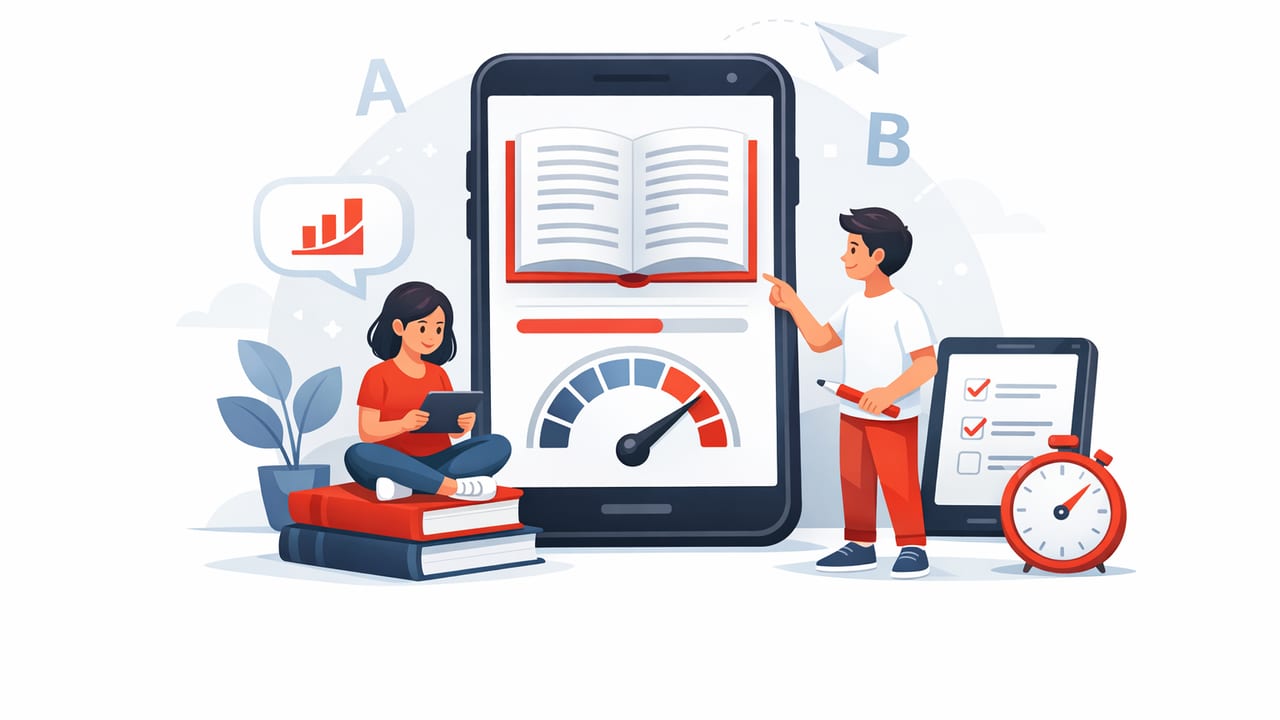
Most people try to read faster by “pushing harder”—skimming more aggressively, drinking more coffee, or powering through long articles late at night. That approach usually backfires: focus drops, comprehension slips, and reading starts to feel like work.
A reading trainer app takes a different route. Instead of forcing speed, it trains the underlying mechanics of how your eyes and attention move through text. Done well, it helps you increase words per minute (WPM) while keeping (or improving) understanding—especially when you’re reading on an iPhone or iPad where distractions and scrolling friction can slow you down.
This guide explains how reading trainer apps work, which skills they build, and a practical plan you can start today.
What a reading trainer app actually trains (beyond “speed”)
Speed reading isn’t one trick—it’s a bundle of micro-skills. A reading trainer app is useful because it can isolate and practice those skills in short, measurable drills. The most common training targets include:
- Fixations: how often your eyes stop while reading
- Saccades: how efficiently your eyes jump from point to point
- Subvocalization control: reducing the habit of “speaking” every word in your head
- Attention stability: staying engaged without rereading lines
- Chunking: reading groups of words instead of one-by-one
- Comprehension monitoring: checking understanding at the right moments
When people say “I read slowly,” they often mean “I reread a lot,” “I lose my place,” or “I drift after a paragraph.” A good reading trainer app addresses these issues directly with controlled pacing and focus-friendly layouts.
How reading trainer apps work on iPhone and iPad
Most reading trainer apps use one (or more) of these modes:
1) RSVP (Rapid Serial Visual Presentation)
RSVP shows one word (or a small chunk of words) at a time in a fixed position. Because your eyes don’t travel across lines, RSVP can reduce wasted eye movement and help you practice steady pacing.
2) Guided highlighting (pacer lines)
The app highlights words or lines at a set speed. This can be more “natural” than RSVP because you still see full sentences and paragraph structure.
3) Reflowed, distraction-reduced reading
Instead of scrolling through cluttered web pages or cramped PDFs, the app presents clean typography, consistent line length, and fewer visual distractions—improving focus and reducing regressions (accidental backtracking).
Key idea: A reading trainer app isn’t just a faster reader. It’s a practice environment where speed and comprehension can improve together.
The most common mistakes that keep you “stuck” at the same speed
Before you start drills, it helps to know what typically limits progress:
- Measuring only WPM and ignoring comprehension (speed without understanding doesn’t transfer to real work)
- Training too fast too soon, which causes tension, skipping, and frustration
- Practicing on the wrong material (dense legal text at maximum speed is a poor starting point)
- No consistency (two long sessions per month is less effective than 8–10 minutes per day)
- Reading in a distracting environment (notifications + multitasking create frequent “attention resets”)
A smart goal is stable speed: a pace you can maintain while explaining what you read. Then you gradually raise that stable speed with targeted drills.
Seven drills you can do with a reading trainer app
Use these drills as building blocks. You don’t need to do all of them daily—pick 2–3 per session.
Drill 1: Baseline + comprehension checkpoint (3 minutes)
Read a short passage at your normal pace, then answer two questions: “What was the main point?” and “What are two supporting details?” Record both WPM and a simple comprehension score (0–2).
Drill 2: Pacer ladder (4 minutes)
Start at a comfortable pace for 60 seconds. Increase by 10–15% for 60 seconds. Drop back to comfortable pace for 60 seconds. This teaches you to handle higher speeds without panic.
Drill 3: Chunk expansion (4 minutes)
If your app supports multi-word display (or highlighting groups), practice moving from 1-word to 2–3 word chunks. The goal is smoother meaning extraction, not “seeing more words.”
Drill 4: Anti-regression practice (3 minutes)
Many apps let you reduce scrolling or lock the flow so you can’t easily jump backward. Practice staying forward-only for a short passage. If you miss something, mark it mentally and keep going—then summarize at the end.
Drill 5: Subvocalization dial-down (3 minutes)
Use slightly faster-than-comfortable pacing (not extreme). Focus on grasping phrases rather than “hearing” each word. If you catch yourself narrating, relax your jaw and refocus on meaning.
Drill 6: Peripheral preview (4 minutes)
In reflowed text mode, soften your gaze to take in the next few words around your focal point. You’re not trying to read with peripheral vision—just building tolerance for wider visual intake.
Drill 7: Structure skimming (5 minutes)
Choose an article with headings. Read headings and first sentences at a high pace, then slow down only for sections that matter. This is a real-world “speed + judgment” drill for students and professionals.
A simple 2-week plan (10 minutes a day)
This plan aims for consistency, not hero sessions. If you miss a day, just continue—avoid doubling the next day.
| Day Range | Daily Drills | Time | Goal | How to Measure |
|---|---|---|---|---|
| Days 1–3 | Baseline + Pacer ladder | 7–10 min | Find stable speed | WPM + 0–2 comprehension |
| Days 4–6 | Chunk expansion + Anti-regression | 8–10 min | Reduce rereading | Fewer backtracks; clearer summary |
| Days 7–10 | Pacer ladder + Subvocalization dial-down | 8–10 min | Comfort at higher pace | Stable WPM increase with same comprehension |
| Days 11–14 | Structure skimming + Baseline checkpoint | 10 min | Transfer to real reading | Time-to-key-points on articles |
Tip: If your comprehension drops (you can’t explain the passage), reduce speed by 10–20% and rebuild stability. Speed gains that you can’t understand won’t stick.
iPhone and iPad setup: small changes that unlock focus
The best drill plan can still fail if your device environment constantly interrupts attention. These settings create a “reading lane” for practice and real work:
- Use Focus mode (allow only essential people/apps during reading blocks).
- Turn off banner notifications for news/social apps; banners train micro-distraction.
- Prefer larger text and moderate line length. If lines are too long, your eyes work harder to find the next line.
- Choose a comfortable contrast. Pure white backgrounds can cause fatigue for some; off-white or sepia may help.
- Use iPad in landscape with a column (if supported). Columns reduce long horizontal eye travel.
How to choose the right reading trainer app (feature checklist)
Not every app labeled “speed reading” supports effective training. Look for features that help you practice and transfer skills to real documents:
Must-haves
- Adjustable speed with fine control (small increments matter)
- Multiple modes (RSVP and/or guided highlighting plus normal reading)
- Easy import (web articles, pasted text, PDFs or text extraction where possible)
- Progress tracking (WPM history, time read, session streaks)
- Comprehension-friendly controls (pause, rewind a few words, bookmarks)
Nice-to-haves
- Chunk size control (1–4 words)
- Built-in drills or structured programs
- Typography controls (font, spacing, margins)
- Offline reading for distraction-free sessions
Practical workflow: move any article into your trainer
One of the biggest benefits of a reading trainer app is using it on the text you already need to read: newsletters, research articles, meeting notes, and study materials. If your app accepts pasted text, a simple copy-clean-paste workflow works surprisingly well.
Here’s a lightweight “clean text” snippet you can adapt (for example, in a small script or note-taking tool) to remove extra whitespace before pasting into your app:
// Simple text cleanup (pseudo-JS)
function cleanForReadingTrainer(text) {
  return text
    .replace(/\s+/g, ' ')      // collapse whitespace
    .replace(/\s([.,;:!?])/g, '$1') // remove space before punctuation
    .trim();
}
If you use iOS Shortcuts, the logic is similar: get text from Share Sheet → replace repeated spaces/newlines → copy to clipboard → open your reading trainer app and paste.
How to know you’re improving (without obsessing over WPM)
WPM is useful, but the most meaningful improvements show up in day-to-day reading:
- Lower reread rate: fewer moments of “Wait, what did I just read?”
- Faster extraction: you can summarize key points after one pass
- Better endurance: you can read longer before attention drops
- More intentional speed control: you naturally speed up for easy sections and slow down for complex ones
Try a weekly check-in: choose a similar-length article each week, time your read, then write a 3-sentence summary and one action item. That’s “real” reading performance.
FAQ: reading faster without losing comprehension
Is RSVP always better than normal reading?
No. RSVP is excellent for training pacing and reducing eye movement, but normal reading is still important for structure, diagrams, and complex arguments. Many readers improve fastest by using both.
Can a reading trainer app help with studying?
Yes—if you treat it as training + selective application. Use higher speeds for review and familiar material; slow down for dense textbook sections and take notes.
What’s a realistic improvement?
Many people see noticeable gains in comfort and pace within a couple of weeks of consistent practice. The best results come from stable increases (with recall) rather than chasing maximum speed.
Closing: make it training, not pressure
The fastest way to get value from a reading trainer app is to use it like you’d use a gym program: short sessions, clear drills, and measurable progression. Focus on stability and understanding first; speed follows as your eyes and attention learn a smoother rhythm.
If you’re looking for an iPhone/iPad option to try, FocalRead is one example of a speed reading app that supports paced reading practice—just keep your plan simple, track comprehension, and train consistently.
