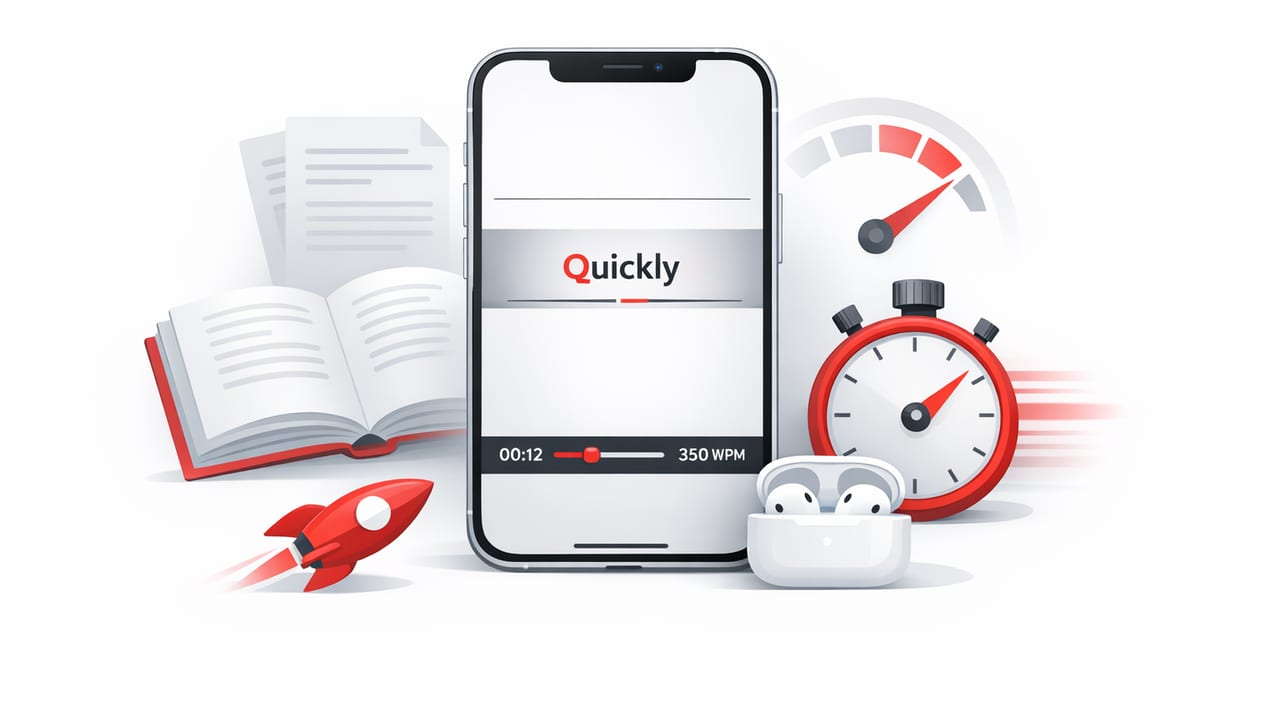
Reading faster on a phone or tablet sounds like a contradiction—small screens, notifications, and endless scrolling don’t exactly invite deep focus. But RSVP (Rapid Serial Visual Presentation) can turn iPhone and iPad into surprisingly effective speed-reading tools by showing text one word at a time in a fixed position. This reduces eye movement and helps you maintain rhythm. If you’re searching for an rsvp speed reading app ios workflow that actually improves speed and comprehension, this guide breaks down how RSVP works, how to set it up, and what to practice.
What RSVP speed reading is (and why it works on iOS)
RSVP is a display method where words appear sequentially in the same spot on screen. Instead of your eyes moving across lines of text (saccades) and pausing to recognize word groups (fixations), RSVP keeps your gaze anchored while the words move for you.
The core advantages
- Less eye movement: Fewer saccades can reduce fatigue and improve consistency at higher WPM.
- Stronger pacing: A fixed cadence prevents unhelpful backtracking and “rereading loops.”
- Great fit for small screens: RSVP makes iPhone reading feel less cramped because layout matters less.
- Focus by design: You see only what you need right now.
Where RSVP struggles
RSVP isn’t perfect for every text. It can be harder for dense technical material, math-heavy content, or sections that require scanning (tables, citations, code). The key is learning when to use RSVP and when to switch to conventional reading.
Practical rule: Use RSVP for linear narrative (articles, memos, reports, books). Switch to normal view for nonlinear information (charts, formulas, references).
RSVP vs. “normal” speed reading: what changes?
Traditional speed reading often focuses on widening your visual span (reading in chunks), minimizing subvocalization, and training faster saccades. RSVP changes the game: you’re no longer trying to move your eyes faster across a page. You’re training your attention and language processing to keep up with a controlled stream.
How comprehension is protected in RSVP
Comprehension usually drops when speed increases too quickly. With RSVP, you can protect comprehension by using:
- Smart pausing: Pause at paragraph boundaries or after key points.
- Variable speed: Slow down for complex sentences; speed up for simple ones.
- Short sessions: Focus comes in bursts—train in 5–15 minute blocks.
Best RSVP settings to start with on iPhone and iPad
Most people fail with RSVP because they pick a random high WPM and try to “white-knuckle” it. Start with settings that support comprehension first, then scale speed.
| Goal | Suggested WPM | Chunking | Pauses | Best Device |
|---|---|---|---|---|
| Warm-up / habit building | 250–320 | Single word | Auto-pause at punctuation | iPhone or iPad |
| Everyday article reading | 320–450 | Single word | Extra pause for commas/periods | iPad (comfort) or iPhone |
| Speed training (short bursts) | 450–650 | Single word | Manual pause as needed | iPad (larger visual target) |
| Skimming familiar material | 650–900+ | Single word | Minimal pauses | iPad recommended |
Display tweaks that matter
- Large, clean font: Increase size until it feels effortless to recognize words.
- High contrast: Dark text on light background (or vice versa) reduces strain.
- Center alignment and stable fixation point: Your eyes should “lock” onto one spot.
- Punctuation delays: Tiny pauses at commas and longer pauses at periods keep meaning intact.
A simple 10-minute RSVP training routine (daily)
This routine is designed for students, professionals, and avid readers who want measurable gains without burnout. Do it once per day for two weeks before making big changes.
Minute 0–2: Warm-up at comfortable speed
Pick an easy article or familiar topic. Start at ~280–330 WPM. Your goal is smoothness, not speed. If you miss a phrase, don’t panic—just pause at the next sentence break and continue.
Minute 2–6: Comprehension-first reading
Raise speed slightly (10–15%). After each paragraph:
- Pause.
- Summarize the main idea in one sentence (silently or in Notes).
- Identify one detail that supports it.
Minute 6–8: Speed burst intervals
Do two short bursts:
- 30 seconds at +30–40% your comfortable WPM
- 30 seconds rest at your comfortable WPM
- Repeat once
These bursts train processing speed without forcing you to sustain an unrealistic pace.
Minute 8–10: Quick recall check
Stop and write (or speak) answers to:
- What was the author’s main claim?
- What were the top 3 supporting points?
- What action would I take based on this?
If you can’t answer, you went too fast. Lower WPM next session and add stronger punctuation pauses.
How to choose the right content for RSVP practice
Training works best when difficulty increases gradually. Use this progression:
- Week 1: News, blog posts, light nonfiction
- Week 2: Essays, business writing, long-form articles
- Week 3+: Reports, textbooks (but switch out of RSVP for formulas/tables)
Avoid these at first
- Poetry (line breaks and rhythm get distorted)
- Legal clauses (dense sentence nesting)
- Highly technical papers (frequent referencing and figure scanning)
Common RSVP problems (and fixes that work)
“I feel like I’m understanding, but I can’t recall anything.”
This is usually a retrieval issue, not a reading issue. Fix it by adding micro-recall: one-sentence summaries after each paragraph. Also reduce speed by 10–20% until recall stabilizes.
“My eyes get tired quickly.”
- Increase font size and contrast.
- Read in shorter blocks (5–10 minutes).
- Use iPad for long sessions; the larger target can be easier on fixation.
“I keep missing long words or names.”
Enable (or increase) long-word delay if your reader supports it. If not, slow down slightly and practice with content that includes proper nouns (biographies, business news) until recognition improves.
“I hate not being able to glance back.”
That’s normal. RSVP removes backtracking, which can feel unsafe. A compromise:
- Pause at the end of each paragraph.
- Switch to normal view briefly to confirm a key detail.
- Return to RSVP for forward reading.
Measuring progress: WPM isn’t the only metric
Speed is motivating, but it’s not the full story. Track three metrics:
- Comfortable WPM: the pace you can maintain with low stress
- Recall score: can you summarize and list key points?
- Finish rate: how often you complete what you start
If you like lightweight tracking, you can calculate a simple “effective speed” that includes comprehension.
// Effective reading speed estimate
// wpm: your RSVP speed
// recall: a 0.0–1.0 self-score (e.g., 0.8 if you recall most key points)
function effectiveWPM(wpm, recall) {
  return Math.round(wpm * recall);
}

// Example: 500 WPM with 70% recall
// effectiveWPM(500, 0.7) = 350
This helps prevent the classic trap: pushing WPM up while comprehension quietly collapses.
Building an iOS reading environment that supports RSVP
RSVP works best when your device setup protects focus.
iPhone setup
- Use Focus mode: silence notifications during sessions.
- One-handed comfort: reduce wrist strain; use a grip or rest your elbow.
- Short sprints: iPhone is perfect for 5–10 minute practice blocks.
iPad setup
- Stable posture: a stand or keyboard case helps longer reading sessions.
- Split tasks carefully: avoid split-screen when training—keep attention on RSVP.
- Longer sessions: iPad is ideal for 15–25 minute deep reading blocks.
When RSVP is the best tool (and when it isn’t)
Best use cases
- Clearing article backlogs
- Reading newsletters or web essays
- Reviewing straightforward reports
- Maintaining focus during “low-energy” reading times (commute, waiting rooms)
Not ideal
- Studying diagrams, tables, or proofs
- Editing your own writing (you need scanning and structure)
- Anything requiring frequent cross-referencing
Putting it together: a realistic path to 2–3x faster reading
Many readers can reach significantly higher speeds with RSVP, but the sustainable gains come from a simple pattern:
- Stabilize comprehension at a comfortable WPM.
- Use short bursts to expand your ceiling.
- Return to comfortable pace to consolidate skill.
- Measure recall so you’re not just “going fast.”
If you want a streamlined way to practice RSVP reading on iPhone and iPad, you can explore a dedicated tool like FocalRead—but whichever reader you choose, the routine and settings above are what make the difference.
