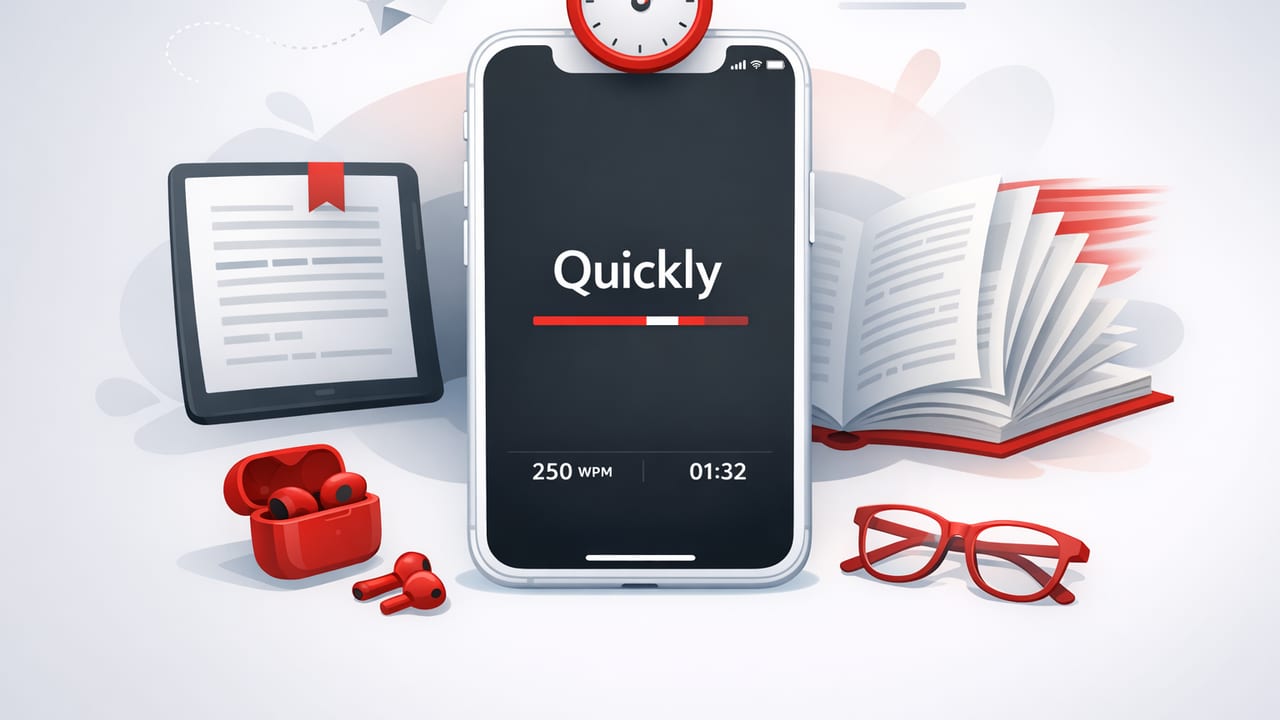
RSVP (Rapid Serial Visual Presentation) is one of the most practical speed reading methods for digital text because it changes how you see words. Instead of scanning lines and making constant eye movements, RSVP presents words (or small chunks) one at a time in a fixed spot. On iPhone and iPad, this can translate into faster reading, less visual wandering, and a more “locked-in” attention state—especially for articles, notes, and study material.
This guide explains how RSVP works, when it helps (and when it doesn’t), and how to set up an effective RSVP speed reading workflow on iOS without sacrificing comprehension.
What RSVP is (and why it works on iOS)
Traditional reading requires frequent saccades (quick eye jumps) and regressions (going back to re-check words). RSVP reduces both by keeping the word location stable. That stability is a big reason RSVP feels “fast” on a phone: your eyes don’t have to travel across a small screen, fight notifications, or re-find your place.
On iOS, RSVP tends to work best because:
- Small screens reward fixed-point reading: less scanning across lines.
- Touch-first controls: easy to pause, rewind, and adjust speed.
- Focus tools: Do Not Disturb, Focus modes, and reading-friendly display settings support deep attention.
Key idea: RSVP isn’t “cheating.” It’s reducing wasted eye motion so more attention goes to understanding.
When an RSVP speed reading app on iOS is a great fit
RSVP is not universal. It shines with text that is mostly linear and doesn’t require frequent visual referencing.
Best content types for RSVP
- Articles and newsletters with a clear narrative flow
- Nonfiction chapters where you can keep moving forward
- Study notes you already partially understand
- Emails and memos where speed matters
Content types where RSVP can be harder
- Dense textbooks with formulas, diagrams, or heavy definitions
- Code, tables, and citations that require spatial scanning
- Poetry and literary prose where pacing and re-reading matter
A simple rule: if you expect to skim back and forth, RSVP may feel restrictive. If you want to move forward cleanly, RSVP often wins.
RSVP vs. scrolling: a practical comparison
| Factor | RSVP | Scrolling/line reading |
|---|---|---|
| Eye movement | Minimal; fixed focal point | High; constant saccades and tracking |
| Focus | Often higher due to steady rhythm | Can drift with screen movement and UI noise |
| Comprehension control | Strong if you pause/rewind strategically | Strong for complex layouts and reference material |
| Best use cases | Articles, linear nonfiction, notes | Textbooks, PDFs, diagrams, code-heavy content |
| Common failure mode | Too fast → “words pass, meaning doesn’t” | Backtracking, re-finding lines, distraction |
Dialing in your RSVP settings (the ones that matter)
Most people try RSVP, crank the speed, and then conclude it “hurts comprehension.” Usually the issue is setup. These are the variables that make the biggest difference.
1) Words per minute (WPM): find your effective range
Instead of chasing a number, find the highest speed where you can still answer basic questions about what you read.
- Warm-up: start 10–20% above your comfortable normal pace.
- Build: increase in small steps (e.g., +25 WPM).
- Cap: stop increasing when you notice you’re decoding words but not integrating meaning.
2) Chunking (1 word vs. multiple words)
Single-word RSVP is clean, but small chunks can improve comprehension because you see short phrases (how the brain often processes language). If your app supports it, test:
- 1 word: maximum control, can feel choppy at first
- 2–3 words: often best for experienced readers
- 4+ words: may become line reading again, losing the RSVP advantage
3) Punctuation pauses
Punctuation is meaning. Good RSVP includes automatic micro-pauses at commas, periods, and paragraph breaks. If punctuation pauses are too short, comprehension suffers; too long, speed gains vanish.
4) Highlighting the focal point (ORP)
Some RSVP systems highlight an Optimal Recognition Point (often near the center of a word). This reduces the effort of “finding” the word each time. If you’re new to RSVP, enabling ORP highlighting can make the experience feel calmer.
Comprehension: the 3 habits that stop RSVP from becoming “fast but empty”
Speed reading is only valuable if you can recall and use what you read. These habits are simple, but they’re what turn RSVP into a real study or work tool.
1) Use “strategic rewinds” instead of constant slowing
When a sentence doesn’t land, avoid dropping your speed immediately. Instead, rewind a sentence (or 5–10 words) and reread at the same pace. This preserves rhythm and trains your brain to integrate meaning under speed.
2) Insert a 10-second summary pause
After each section (or every few paragraphs), pause and say (out loud or silently):
- What was the point?
- What are the 1–2 key claims?
- What would I tell someone else?
This tiny “retrieval moment” upgrades retention more than another 5 minutes of reading.
3) Separate “learning speed” from “review speed”
For new, technical material, use a moderate RSVP speed for first exposure. Later, review at a higher speed to reinforce structure and memory. Many readers fail because they try to use one speed for every purpose.
A simple iPhone/iPad RSVP reading workflow
Here’s a repeatable workflow that works well for students and professionals using an RSVP speed reading app on iOS.
- Collect text into a single reading queue: copy/paste from web pages, import articles, or add notes you need to review.
- Set a time box: 10–20 minutes is enough to build consistency without fatigue.
- Warm up for 60 seconds: slightly slower than your target speed to settle in.
- Main read: maintain pace; rewind when meaning slips; don’t constantly tweak WPM.
- End with retrieval: write 3 bullets: (a) main idea, (b) supporting points, (c) action or takeaway.
iOS focus setup: remove the friction that kills speed reading
RSVP is attention-sensitive. A few iOS settings can protect your reading session.
- Use a Focus mode: allow only essential notifications (or none).
- Turn on Do Not Disturb during sessions: especially if you read on your phone.
- Adjust text/display for comfort: reduce glare (Dark Mode), increase brightness consistency (disable auto-brightness if it distracts), and use comfortable contrast.
- Use Guided Access (optional): lock into one app during study blocks to prevent app-switching.
Micro-training plan: improve speed in 2 weeks without losing comprehension
This plan is designed for consistency over intensity. You’re training rhythm, not forcing speed.
| Day range | Session length | Goal | How to adjust |
|---|---|---|---|
| Days 1–3 | 10 minutes | Comfort with RSVP rhythm | Find a baseline WPM you can summarize |
| Days 4–7 | 12–15 minutes | Stability | Increase +25 WPM if summaries stay accurate |
| Days 8–11 | 15–20 minutes | Higher speed with control | Add strategic rewinds; don’t drop speed |
| Days 12–14 | 15–20 minutes | Real-world transfer | Read the content you actually need (work/school) |
Common RSVP mistakes (and quick fixes)
Mistake: Pushing WPM too high too soon
Fix: Raise speed only when you can produce a 2–3 sentence summary without re-reading the entire passage.
Mistake: Treating RSVP like passive entertainment
Fix: Add one active step: highlight a key sentence, write a takeaway, or answer a question after each section.
Mistake: Using RSVP for everything
Fix: Use RSVP for linear text; switch to normal reading for diagrams, math, or complex references.
Optional: a Shortcuts-style “reading session” template
If you like automation, you can create a simple iOS Shortcut to start a consistent reading block (Focus mode + timer). The exact actions vary by iOS version and installed apps, but the logic looks like this:
// Pseudocode for an iOS Shortcut “RSVP Reading Session”
1) Set Focus Mode: Reading (ON)
2) Set Brightness: 55%
3) Start Timer: 15 minutes
4) Open App: (your RSVP reader)
5) When Timer Ends:
   - Show Notification: “Pause and write 3 bullet takeaways.”
   - Set Focus Mode: Reading (OFF)
The point isn’t perfection—it’s removing setup friction so you read more often.
How to choose an RSVP speed reading app on iOS (quick checklist)
- Easy speed control: quick adjust, pause, rewind, and resume
- Punctuation-aware pacing: smart pauses at commas/periods
- Chunking options: 1–3 word chunks if you prefer phrase reading
- Comfort features: fonts, themes, ORP highlighting, spacing
- Import flexibility: paste text, read web content, handle documents when needed
Bottom line
RSVP on iPhone and iPad is a legitimate way to read faster—especially for linear digital text—because it reduces unnecessary eye movement and supports sustained focus. The best results come from a calm setup (proper speed, punctuation pauses, and strategic rewinds) plus a small comprehension habit like quick summaries.
If you’re experimenting with an RSVP speed reading app on iOS and want a focused, minimalist approach, you can try a tool like FocalRead and apply the setup principles above to keep speed gains tied to real comprehension.
