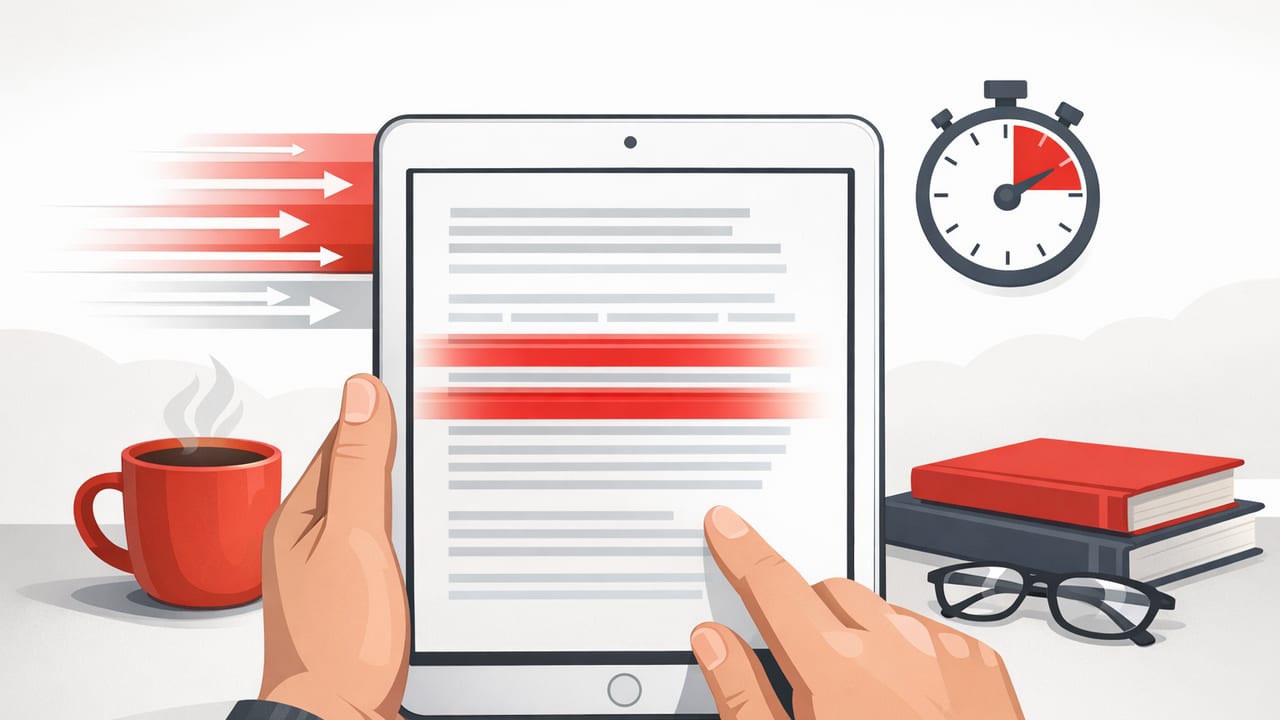
Reading on an iPad can be surprisingly fast—if you set it up for focus and use a method that matches the material. A good speed reading iPad workflow isn’t about racing through words; it’s about reducing friction (scrolling, distractions, eye fatigue) so your attention stays on meaning. With the right settings, practice structure, and comprehension safeguards, many readers can increase pace while keeping recall solid.
This guide walks you through an iPad-first system: device setup, practical speed reading methods, a repeatable training session, and workflows for PDFs, web articles, and professional documents.
Why the iPad is a strong device for speed reading
Compared with a phone, the iPad’s larger screen makes it easier to control typography, see context, and reduce constant scrolling—three factors that directly influence speed and comprehension.
- Less scrolling, fewer attention breaks: Larger text blocks stay in view longer, so your eyes can maintain rhythm.
- Better typography control: Font size, line spacing, and contrast can be tuned for comfort (and comfort supports speed).
- Split View and Slide Over: Read on one side, take notes or outline on the other—great for study tools and deep learning.
- Accessory advantage: An Apple Pencil makes quick margin notes and recall prompts easier than typing mid-read.
Set up your iPad for speed reading (a 5-minute checklist)
Before you touch any speed reading technique, remove the common bottlenecks: eye strain, notification pull, and messy layout. These settings help most people read faster for longer.
Display, text, and motion settings
| Setting | Where | Recommended for speed reading |
|---|---|---|
| Text Size | Settings > Display & Brightness > Text Size | Large enough to avoid squinting; small enough to reduce line breaks |
| Bold Text | Settings > Accessibility > Display & Text Size | Try ON if your eyes drift; OFF if it feels visually “heavy” |
| Reduce Motion | Settings > Accessibility > Motion | ON to reduce animation distraction |
| Auto-Brightness / True Tone | Settings > Accessibility > Display & Text Size | Keep comfort high; eye fatigue quietly kills speed |
| Orientation Lock | Control Center | Lock to your preferred reading orientation to avoid accidental flips |
Focus and notification control
If you do only one thing for speed reading iPad performance, do this: read inside a Focus mode.
- Open Settings > Focus and create a “Reading” Focus.
- Allow notifications only from essentials (or none).
- Use a simple home screen page with only reading and notes apps.
- Optionally enable Scheduled Focus for your regular study block.
Pick the right iPad speed reading method (based on the text)
Not all reading is the same. A novel, a research paper, and a business report ask for different pacing. The best method is the one that preserves meaning while increasing tempo.
| Method | How it works | Best for | Watch-outs |
|---|---|---|---|
| Guided line pacing | You follow a moving highlight/marker line-by-line | PDFs, textbooks, structured content | Too fast early can reduce inference and integration |
| Chunked reading (phrase focus) | Train eyes to grab 2–5 words at a time | Articles, reports, familiar topics | Needs practice to avoid “skipping” key qualifiers |
| RSVP (rapid serial visual presentation) | Words appear one at a time at a fixed point | Short articles, emails, quick drafts | Harder to re-scan; use built-in rewind/phrase mode if available |
Rule of thumb: use RSVP or chunking for speed, and use line pacing for accuracy when the text is dense or concept-heavy.
A repeatable 20-minute iPad speed reading session
Consistency beats intensity. This short session is designed to improve reading speed and focus while keeping comprehension as the non-negotiable constraint.
- 2 minutes: Preview
- Read headings, subheadings, intro, and conclusion.
- Ask: “What problem is this text solving?”
- 6 minutes: Controlled fast pass
- Set a pace that feels slightly challenging (not panicked).
- Keep eyes moving forward; avoid rereading mid-sentence.
- 2 minutes: Micro-pause + recap
- Without looking, write or speak a 2–3 sentence summary.
- Identify one confusing section to revisit.
- 6 minutes: Second pass (targeted)
- Slow down only where your recap revealed gaps.
- Turn key points into questions (great for studying).
- 4 minutes: Retrieval practice
- Write 3 bullet takeaways and 1 application (how you’ll use it).
- If it’s academic, add 3 flashcard-style Q&A prompts.
Speed comes from clarity. When you preview well and recall actively, you reread less—and rereading is usually what makes reading slow.
Comprehension safeguards (so faster reading still “counts”)
Many people think speed reading fails because “I forgot everything.” In practice, comprehension usually drops for one of three reasons: no preview, too little pausing, or no retrieval practice. Fix those and your speed reading iPad gains become much more reliable.
Use “checkpoints” instead of constant rereading
- End-of-section recap: One sentence per section before moving on.
- Question prompts: “Why does this matter?” “What caused this?” “What’s the evidence?”
- Keyword anchors: Highlight only terms that future-you will search for.
Take lighter notes than you think you need
On iPad, notes can become a second job. Keep them minimal:
- For articles: 3 bullets + 1 action.
- For study chapters: a short outline of headings + definitions + one example per concept.
- For professional docs: decision points, risks, numbers, and “next steps.”
iPad workflows for common reading types
1) PDFs, textbooks, and lecture slides
Dense PDFs punish bad layout. Improve flow first, then speed.
- Use two-column awareness: If the PDF is two columns, zoom so one column fits the screen width to reduce horizontal eye travel.
- Split View for notes: PDF on the left, Notes (or a markdown editor) on the right for quick retrieval prompts.
- Search strategically: Use find-in-document for definitions and repeated concepts rather than scanning manually.
2) Web articles and research reading
- Reader Mode when available: It removes ads and sidebars that create “attention leaks.”
- Open links later: Don’t derail your reading sprint. Queue links in a reading list for a separate session.
- Skim first, then sprint: Identify headings and pull quotes, then read the sections that actually matter.
3) Reports, briefs, and work documents
For productivity reading, your goal is often extraction, not enjoyment.
- Start with the summary: Then jump to charts, risks, and recommendations.
- Read for decisions: Highlight sentences that change what you will do next.
- Use a “question frame”: “What is being proposed?” “What does it cost?” “What could go wrong?”
Track progress: WPM plus a comprehension score
Speed alone is a vanity metric. Track pace and understanding together for a truer measure of improvement.
Simple measurement method
- Words per minute (WPM): (Word count / minutes) for a passage.
- Comprehension score (0–5): Rate how well you can explain the main idea and key details without looking.
| Session | Material | WPM | Comprehension (0–5) | Notes |
|---|---|---|---|---|
| 1 | Article (familiar topic) | — | — | Target: steady pace, no mid-sentence rereads |
| 2 | PDF chapter (dense) | — | — | Target: preview + end-of-section recaps |
A lightweight iPad Shortcut for a reading sprint (optional)
If you use the Shortcuts app, you can automate a distraction-free start. Here’s a simple outline you can recreate:
Shortcut: Reading Sprint
1) Set Focus: Reading (On)
2) Set Brightness: 60%
3) Start Timer: 20 minutes
4) Open App: your reading app or Safari
Common mistakes (and quick fixes)
- Mistake: Increasing speed every day. Fix: Hold one pace for several sessions; raise speed only when comprehension stays stable.
- Mistake: Treating all texts the same. Fix: Use RSVP/chunking for light content; line pacing for dense material.
- Mistake: Constant backtracking. Fix: Add checkpoints (recaps) and a second pass instead of rereading instantly.
- Mistake: Reading while multitasking. Fix: Use Reading Focus and full-screen reading for your main sprint.
FAQ: Speed reading on iPad
Is speed reading on iPad better than on iPhone?
Often, yes. The iPad’s screen reduces scrolling and makes layout control easier, which supports smoother pacing and less fatigue.
Will iPad speed reading reduce comprehension?
It can if you push pace without previewing and recalling. If you add brief recaps and a targeted second pass, comprehension usually holds up much better.
What WPM should I aim for?
Choose a pace where you can still explain what you read. Many readers train in ranges (e.g., comfortable, stretch, and sprint) rather than chasing one number.
What’s the fastest way to improve speed reading iPad results?
Do short daily sessions, use Focus mode, and measure both WPM and a comprehension score. The combination prevents “fast but forgettable” reading.
Putting it all together
A strong speed reading iPad system is simple: optimize your screen and notifications, pick a method that fits the text, practice in short sprints, and prove comprehension with quick retrieval. Do that for a few weeks and you’ll usually notice not only faster reading, but also better focus and more consistent recall.
If you want to experiment with guided pacing or RSVP on iOS, there are dedicated tools available (for example, FocalRead)—but the biggest gains still come from the setup and habits you apply every session.
