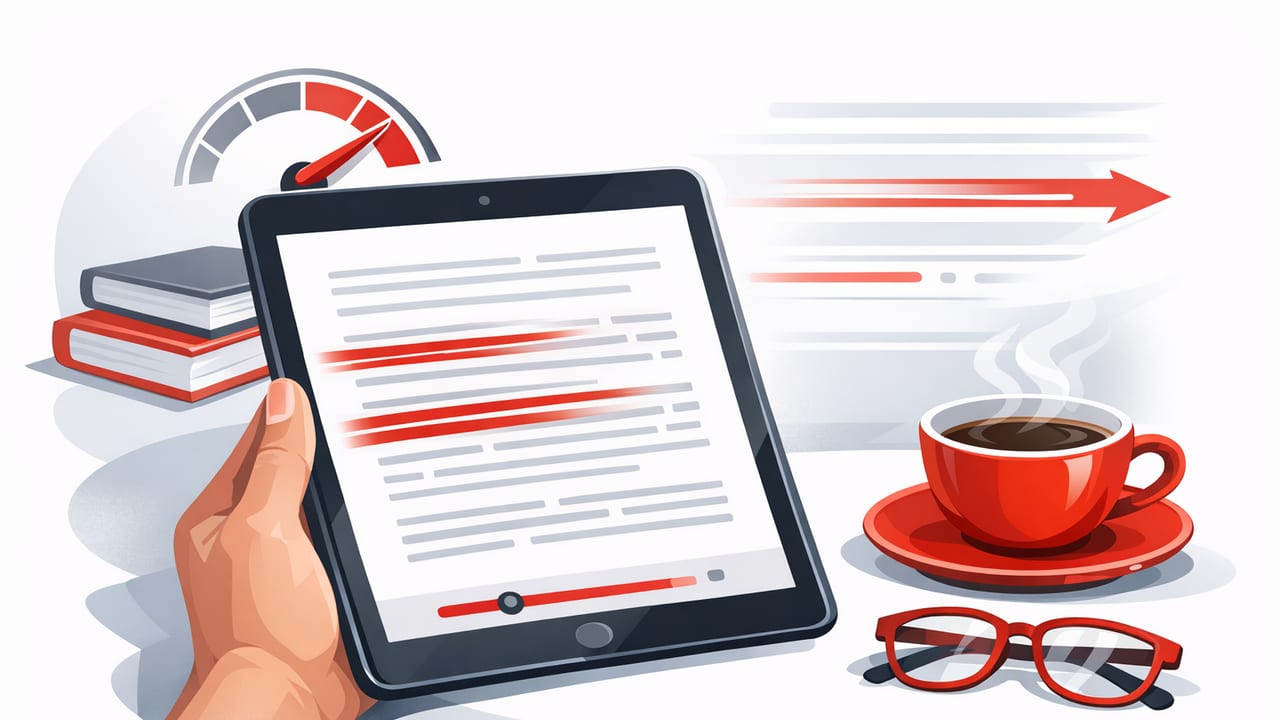
The iPad is one of the best devices for learning speed reading because it balances screen size, portability, and distraction control. If you read a lot of PDFs, research articles, textbooks, reports, or long web pieces, a good speed reading iPad workflow can reduce reading time dramatically while keeping comprehension stable.
This guide walks you through a practical iPad-first system: how to set up your environment for focus, which speed reading techniques translate best to a larger screen, and the drills that reliably build reading speed over weeks (not just for one session).
Why iPad Works So Well for Speed Reading
Compared with phones, the iPad has three structural advantages for speed reading:
- Less eye strain, more consistent pacing: bigger text and wider line spacing reduce fatigue.
- Better layout control: Split View, Stage Manager, and PDF annotation make it easier to stay organized.
- Stronger focus boundaries: Focus modes and fewer “pocket” interruptions help you keep momentum.
Speed reading is not about skimming everything. It is about increasing efficiency by reducing wasted eye movements, improving attention, and using structure to keep comprehension high.
The Core Skills Behind Faster Reading (and What Actually Changes)
If you have tried to read faster by simply moving your eyes quicker, you have probably felt your comprehension drop. Real speed reading gains usually come from three skill shifts:
- Fewer regressions: you stop re-reading lines unconsciously.
- Better fixation efficiency: you take in more words per glance.
- Stronger attentional control: you maintain a steady pace without drifting.
Speed comes from consistency and reduced backtracking, not from rushing your eyes.
Step 1: Set Up Your iPad for a Speed Reading Session
Use a Focus-first environment
Before you change technique, remove friction:
- Enable a Focus mode (for example, Study or Work) that silences non-essential notifications.
- Use Do Not Disturb for timed sprints (10–20 minutes) so your pace is not broken.
- Turn off visual noise: reduce badges, keep one reading screen visible, and close extra tabs.
Dial in text comfort (this matters for speed)
For most people, a comfortable visual setup increases speed because it reduces micro-pauses and fatigue:
- Font size: slightly larger than your default so you do not squint.
- Line spacing: medium spacing prevents line-jumps.
- Margins: narrow columns often read faster than full-width lines.
- Theme: choose a contrast level that feels effortless (often dark text on warm background).
If you read PDFs, consider using a view that creates a narrower column (two-page view in landscape or reflow when available). Narrower lines reduce horizontal eye travel, which supports faster pacing.
Step 2: Choose the Right Reading Mode for the Material
Not all text should be read the same way. One reason people struggle with speed reading is using a single mode for everything. On iPad, you can switch modes quickly depending on your goal: deep study, review, or first-pass understanding.
| Mode | Best for | How it helps speed | Main risk |
|---|---|---|---|
| Normal reading (narrow column) | Most books, articles, reports | Improves rhythm, reduces eye travel | Regression if you lose focus |
| Guided highlight / line focus | Dense material, tired days | Prevents line-skipping and backtracking | Can feel slower at first |
| RSVP (one chunk at a time) | Quick first pass, lighter nonfiction, drafts | Removes saccades (eye jumps), enforces pace | Harder to pause and map structure |
| Skim + structure | Long documents, academic PDFs | Finds the 20 percent that drives 80 percent of meaning | Misses nuance if overused |
For many readers, the best speed reading iPad approach is hybrid: skim for structure first, then use guided focus or normal narrow-column reading for the parts that matter.
Step 3: Learn Two Techniques That Work Especially Well on iPad
1) Pacing (the simplest upgrade)
Pacing is using a steady guide to reduce regressions and maintain speed. On iPad you can pace with:
- Your finger (lightly under the line)
- Apple Pencil (great for PDFs and study notes)
- A highlight/line focus feature inside your reader
Rule: keep the guide moving slightly faster than your comfort speed. Your attention tends to follow motion, which reduces wandering.
2) Chunking (seeing phrases, not individual words)
Chunking means reading in meaningful groups (for example, 2–5 words) instead of word-by-word. The iPad screen makes chunking easier because you can set larger text without losing context.
Try this progression:
- Start with 2-word chunks and maintain comprehension.
- Move to 3-word chunks once you feel stable.
- Use punctuation as anchors: pause slightly at commas and periods instead of pausing randomly.
Step 4: A 15-Minute Daily Training Plan (That Does Not Kill Comprehension)
Speed reading improves fastest with short, consistent sessions. Use this simple daily structure:
Minute 0–3: Warm-up at an easy pace
- Read something simple (newsletter, blog post, light nonfiction).
- Focus on smooth pacing, not speed.
Minute 3–10: Speed intervals
- Do 3 rounds of: 90 seconds fast + 60 seconds normal.
- During the fast segments, accept that you will not catch every detail.
- During normal segments, stabilize comprehension and summarize mentally.
Minute 10–15: Comprehension lock-in
- Write (or speak) a 3-sentence summary.
- List 3 key points and 1 question you still have.
This approach trains speed and comprehension as complementary skills instead of trading one for the other.
How to Measure Progress on iPad (Without Obsessing)
The most useful metrics are:
- Words per minute (WPM) on familiar difficulty levels
- Comprehension checks (can you explain the main idea and supporting points?)
- Regression rate (how often you feel pulled to re-read)
A simple weekly check:
- Choose a similar type of text each week (same topic difficulty).
- Read for 5 minutes at a steady pace.
- Record WPM estimate and do a short summary.
Expect progress to come in plateaus: your brain consolidates, then your speed jumps again.
A Practical iPad Workflow for PDFs and Research Articles
PDFs are where many speed reading plans fall apart because layouts are messy and scrolling breaks rhythm. Use this workflow:
- Preview structure first: abstract, headings, conclusion, charts.
- Decide your depth: full read, selective read, or skim for citations.
- Read in passes:
- Pass 1 (fast): headings + first sentence of paragraphs.
- Pass 2 (focused): the 2–3 sections that matter most.
- Pass 3 (notes): capture definitions, formulas, and claims.
- Annotate sparingly: highlight only what you would want to find again.
If you are a student, this pass-based method often saves hours because you stop treating every paragraph as equally important.
Optional: Automate a Reading Sprint with iPad Shortcuts
If you like routines, you can create a Shortcut that starts a distraction-free sprint. The exact actions vary by your setup, but this pseudocode shows the logic:
Shortcut: Reading Sprint
1) Turn on Focus mode: Study
2) Set brightness to 40-60%
3) Start a 15-minute timer
4) Open your reading app or PDF folder
5) (Optional) Start white noise playback
The point is not the automation itself; it is making focused reading the default path of least resistance.
Common Speed Reading Mistakes (Especially on iPad)
- Chasing speed before stability: build smooth pacing first, then push WPM.
- Reading full-width lines in landscape: very long lines slow you down and increase line-loss.
- Overusing RSVP: it is powerful, but for complex arguments you still need structure mapping.
- No comprehension feedback: if you never summarize, you cannot tell if you are learning.
- All-or-nothing sessions: 10–15 minutes daily beats one long weekend push.
FAQ: Speed Reading on iPad
How fast can I realistically get?
Many readers can improve meaningfully (often 1.3x to 2x) while keeping solid comprehension. Higher speeds are possible for lighter material or first-pass reading, but deep technical work still benefits from slower sections.
Does speed reading reduce comprehension?
It can if you force speed without technique. When you reduce regressions, improve chunking, and add short comprehension checks, comprehension often stays stable and may improve because focus improves.
What is the best iPad orientation for speed reading?
Portrait often works best for long-form reading because it naturally creates narrower line lengths. Landscape can be great if you use a two-column layout or keep text narrow.
Putting It All Together: Your Next 7 Days
- Day 1: Set up Focus mode + comfortable text settings.
- Days 2–3: Practice pacing (finger or Pencil) for 15 minutes.
- Days 4–5: Add chunking (2–3 word groups) and keep summaries.
- Days 6–7: Try speed intervals and a PDF pass-based workflow.
By the end of the week, you should feel less backtracking and more control over your reading pace—two of the strongest predictors of lasting speed gains.
If you want a dedicated iOS tool that supports speed reading workflows on iPad, you can explore FocalRead as one option and compare it with the reading modes you prefer.
