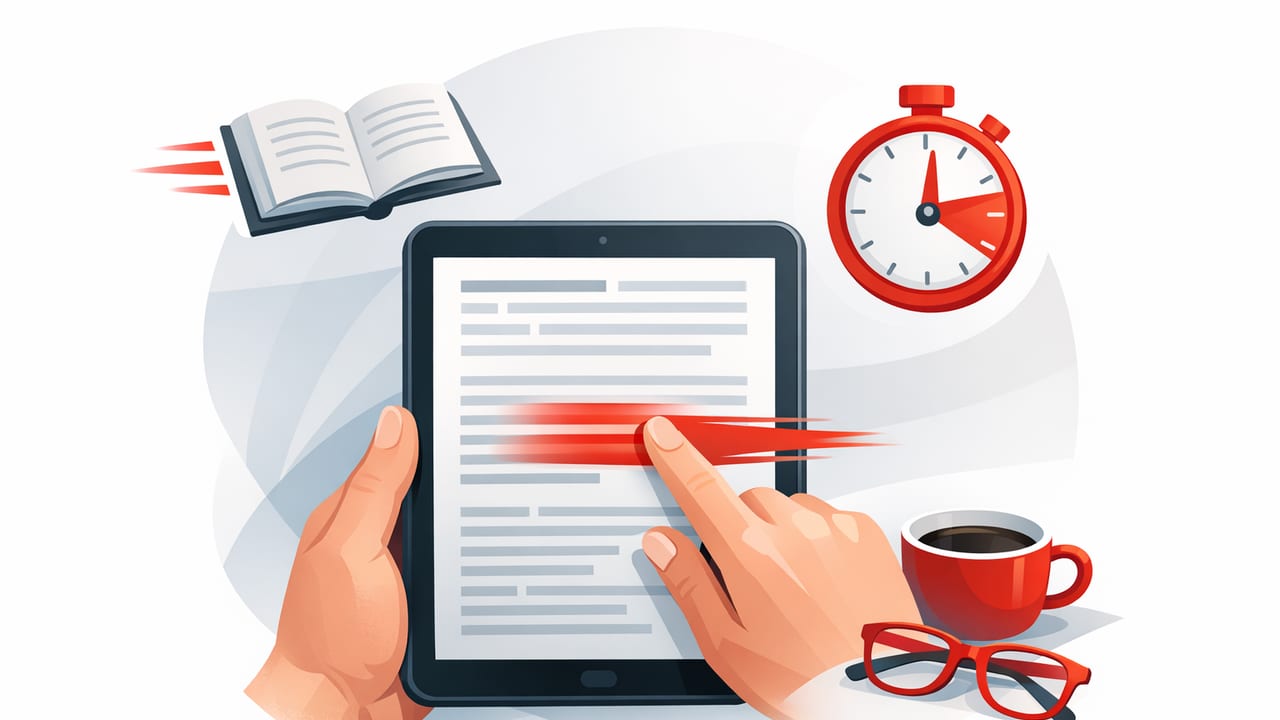
Reading on an iPad is uniquely suited for building speed: the screen is large enough to reduce line breaks, portable enough for daily practice, and flexible enough to handle everything from articles to PDFs to textbooks. But “reading faster” isn’t just about cranking up words per minute (WPM). Sustainable speed reading on iPad is about improving efficiency: fewer regressions (re-reading), better attention, and reliable comprehension.
This guide walks through a practical iPad setup, proven speed reading techniques, and a routine you can follow without sacrificing understanding—whether you’re a student studying dense material or a professional trying to clear a backlog of reports.
Why iPad is a great device for speed reading
Compared to a phone, iPad reading has three advantages that matter for speed and comprehension:
- Stable line length: fewer line breaks reduces accidental re-reading and eye fatigue.
- Better ergonomics for focus: a larger screen supports comfortable font sizes and margins while keeping more context visible.
- Multi-task workflows: Split View and Stage Manager let you take notes alongside the text without constantly switching apps.
Step 1: Optimize your iPad for focus (before you optimize speed)
Speed gains often come from removing friction. Try these iPad settings and habits first:
Use a distraction-minimizing Focus mode
Turn on a Focus profile for reading so notifications don’t break your attention. Even short interruptions can cause regressions and reduce comprehension.
- Allow only essential people/apps.
- Hide distracting Home Screen pages during reading sessions.
- Schedule the Focus mode for your usual reading time.
Choose readability-friendly display settings
- Brightness: keep it comfortable; too dim increases strain, too bright increases fatigue.
- Text size: slightly larger text often improves speed because it reduces squinting and stabilizes fixation.
- True Tone / Night Shift: use if it reduces eye strain for long sessions.
Use a consistent reading posture
Consistency reduces mental “setup cost.” A simple standard works well: iPad on a stand, external keyboard optional, and a timer for focused blocks.
Rule of thumb: If your eyes are comfortable and your attention stays steady, speed usually follows.
Step 2: Pick the right speed reading technique for the text type
Not all materials should be read the same way. Dense textbooks and legal documents require a different approach than news articles or emails. Below are three core techniques that work well for speed reading iPad workflows.
1) Reduce regressions (the hidden speed killer)
Many readers lose time by re-reading lines unconsciously. On an iPad, regressions often happen when:
- line length is too wide (eyes lose their place),
- font is too small (extra effort increases backtracking),
- distractions cause “context drops.”
Fix: Increase font size slightly, add margins (if your reader supports it), and keep sessions short enough that your attention doesn’t degrade.
2) Use guided reading (visual pacing)
Guided reading uses a visual cue to keep your eyes moving forward at a steady rate. Examples include:
- Pointer technique: track with your finger or Apple Pencil as you read.
- Highlight/underline in PDFs: the act of marking can reduce drifting attention.
- Line-focus modes: some readers dim everything except the current line to stabilize your gaze.
This is especially effective on iPad because the larger display makes the guide easier to follow without feeling cramped.
3) Try paced word presentation for lighter material
Some reading modes present text in a paced, word-by-word or chunked format (often called RSVP-style reading). This can help you:
- maintain rhythm,
- avoid jumping backward,
- move quickly through familiar or less technical content.
When to avoid: highly technical content, equations, and passages where you need to compare earlier definitions—these often require flexible scanning and re-checking.
A quick comparison: which mode fits which reading job?
| Reading goal | Best approach | Why it works | Risk to watch |
|---|---|---|---|
| Finish articles/news faster | Paced word/chunk mode | Creates momentum and reduces regressions | Missing nuance if speed is too high |
| Study and retain concepts | Guided reading + notes | Keeps attention while preserving context | Over-highlighting instead of understanding |
| Skim reports for key points | Structured skimming (headings first) | Finds relevance before deep reading | Skipping supporting evidence |
| Read dense PDFs (research/legal) | Normal view + deliberate pacing | Allows back-and-forth checking when needed | Going too slow due to perfectionism |
Step 3: Use a simple comprehension safeguard (so speed doesn’t become guessing)
The most common mistake in speed reading is measuring only WPM. Instead, pair speed with a tiny comprehension check. Here are two that work well:
The 10-second summary
After a section, pause and summarize it out loud (or in Notes) in one or two sentences. If you can’t, slow down or re-read strategically.
The “question first” method
Before you read, write 1–3 questions you want the text to answer. Your brain reads faster when it knows what it’s hunting for.
Step 4: Build an iPad-friendly workflow for different formats
Most people read a mix of web pages, PDFs, email, and notes. A repeatable workflow prevents context switching from eating your gains.
Web articles
- Open the article in a clean reading view (when available) to remove clutter.
- Increase font size and line spacing slightly until you can read without squinting.
- If the article is long, skim headings first, then read only the relevant sections.
PDFs and textbooks
- Use a two-pass approach: (1) skim headings/figures, (2) read deeply where needed.
- Annotate sparingly: highlight only definitions, claims, and evidence.
- For technical sections, accept controlled re-reading; comprehension beats raw speed here.
Split View study setup (highly effective on iPad)
Try this layout for study sessions:
- Left: your reading app or PDF viewer.
- Right: Notes (or a note app) with a simple template: Key idea → Explanation → Example.
- Optional: use Apple Pencil to quickly capture diagrams or formulas.
This reduces the need to “hold everything in your head,” which often slows reading.
A practical 20-minute routine to improve speed reading on iPad
Consistency beats intensity. Use this routine 4–5 days per week.
Minutes 0–3: Warm-up
- Set a timer.
- Choose a short, easy passage (something you understand comfortably).
- Read at a steady pace with guided reading (finger or Pencil).
Minutes 3–15: Main set (two rounds)
- Round 1 (6 minutes): Read slightly faster than comfortable. Keep moving forward; don’t obsess over perfect recall.
- Round 2 (6 minutes): Read a comparable passage at a pace where comprehension feels stable.
Minutes 15–20: Comprehension check + reflection
- Do a 10-second summary.
- Write one sentence: “What did I actually learn?”
- Adjust one variable next time (font size, margins, speed, or session length).
How to track progress (without turning it into a math project)
Tracking matters because perceived improvement can be misleading. Keep it lightweight: measure speed and comprehension once a week using similar material.
Simple WPM estimate
Most ebooks and PDFs don’t show exact word counts, but you can estimate WPM from pages if your material is consistent. Or, for web articles, copy the text into a word counter.
# Quick WPM formula (use in any calculator/spreadsheet)
# WPM = words_read / minutes

WPM = 1200 / 4  # = 300
Then pair it with a comprehension score (0–5) based on how well you can summarize and answer your pre-written questions.
Common problems (and fixes) when speed reading on iPad
“I read faster, but I don’t remember anything.”
- Slow down 10–15% and add the 10-second summary after each section.
- Switch from paced word presentation to guided reading for denser content.
- Use the “question first” method to create a purpose for reading.
“My eyes get tired quickly.”
- Increase font size and line spacing.
- Reduce glare and adjust brightness.
- Read in shorter intervals (e.g., 10–15 minutes) with brief breaks.
“I can’t stop re-reading.”
- Use a pointer (finger/Pencil) to prevent backward jumps.
- Practice controlled forward-only reading for 2–3 minutes at a time.
- Accept that intentional re-reading is useful when you’re studying; the goal is to remove unconscious regressions.
FAQ: speed reading iPad basics
Is speed reading “real,” or does it hurt comprehension?
Both can be true depending on technique and content. Many readers can improve speed by reducing regressions and improving focus without harming comprehension. Extremely high WPM claims often apply only to light material or prioritize scanning over deep understanding.
What’s a realistic speed goal?
A practical target is a steady improvement while keeping comprehension stable—often 25–75% faster over time for many people, depending on starting point and text type.
Do I need special apps to speed read on iPad?
No. You can make meaningful gains with good iPad settings, a distraction-free workflow, and guided reading. That said, some readers prefer dedicated tools with pacing modes and adjustable layouts for practice.
Putting it all together
Effective speed reading on iPad is less about forcing your eyes to move faster and more about building a reliable system: a focused environment, the right technique for the material, and a quick comprehension check that keeps you honest. Start with small, repeatable sessions, and let speed increase naturally as attention and efficiency improve.
If you’re experimenting with paced reading modes on iPhone or iPad, an app like FocalRead can be one way to structure practice—just keep your priority on comprehension, not just WPM.
