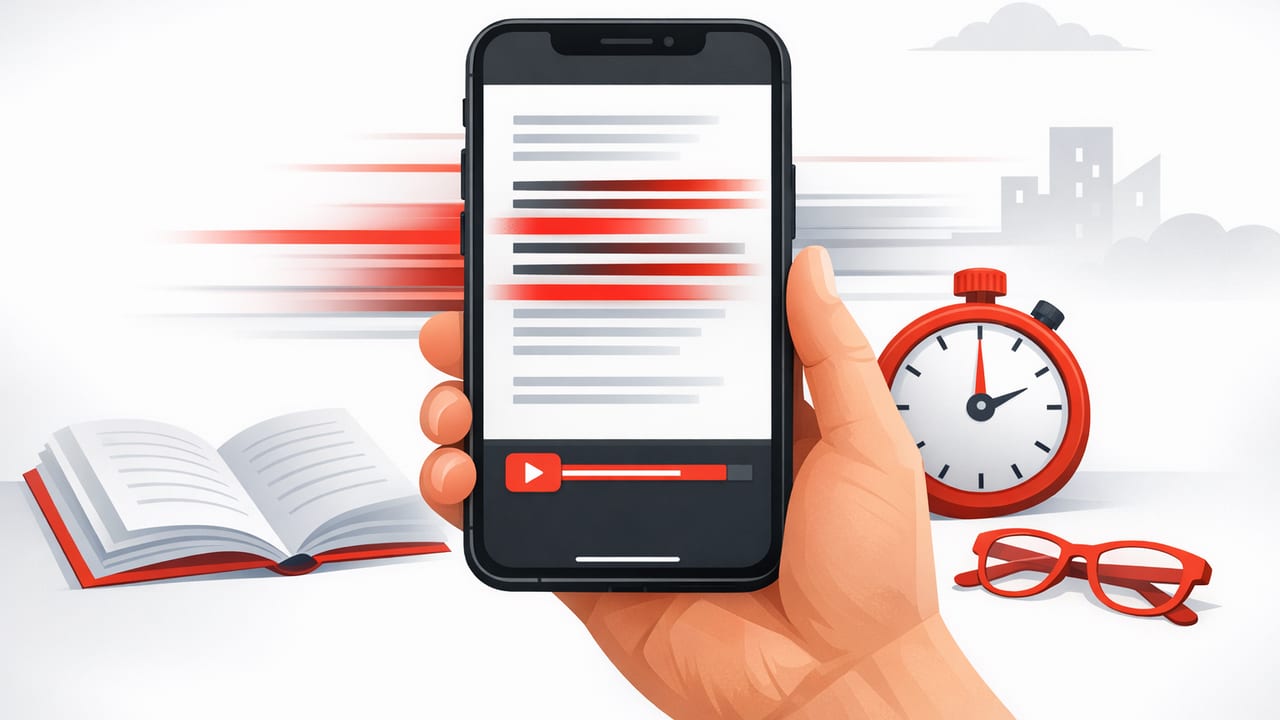
Speed reading on iPhone works best when you treat it as a system, not a single trick. The phone is always with you, text is everywhere (articles, PDFs, notes, emails), and short gaps in the day are perfect for training. The challenge is that small screens, notifications, and constant context switching can quietly destroy focus—so the goal is to build an iPhone setup and routine that protects attention while increasing words per minute (WPM) without sacrificing understanding.
This guide walks you through practical iPhone settings, speed reading techniques that transfer well to digital text, and a repeatable workflow you can use for articles, study material, and professional reading.
What “speed reading on iPhone” should (and shouldn’t) mean
Good speed reading is faster reading with usable comprehension. On iPhone, that usually means:
- Less regressions (fewer backtracks to reread).
- More consistent pacing (less drifting).
- Stronger recall because you actively check understanding.
It should not mean skimming everything at maximum speed. Some content deserves slow reading (legal terms, dense theory, poetry). Speed reading is a dial, not a single setting.
Principle: Increase speed by improving attention and reducing wasted eye movements—not by forcing your brain to guess.
Step 1: Optimize iPhone settings for focus reading
Before you practice techniques, remove the friction that causes rereading and distraction.
1) Use Focus mode intentionally
Create a Focus mode named Reading. Allow only truly essential alerts (or none). The point isn’t to be unreachable forever—it’s to protect 10–25 minute reading blocks.
- Silence notifications from social apps and group chats.
- Allow calls from key contacts if needed.
- Optional: hide distracting Home Screen pages during Reading Focus.
2) Reduce visual noise
- Dark mode or light mode: choose the one that keeps you alert (many people prefer light mode for daytime reading).
- Text size: avoid extremes. Too small increases strain; too large reduces phrase visibility and can slow you down.
- Brightness: set it slightly higher than “comfortable” so you don’t squint and reread.
3) Turn on reading-friendly layouts
For web articles, use Safari’s Reader view to remove ads and sidebars. For long-form reading, a clean layout reduces attention drift and improves speed.
4) Use a consistent posture and grip
It sounds minor, but physical instability increases rereading. Choose one of these:
- Two-handed grip with elbows supported (best for longer sessions).
- One-handed grip with the other hand free to highlight/take notes (best for quick sessions).
Step 2: The core techniques that translate best to iPhone
Classic speed reading advice often assumes paper. On iPhone, these techniques work especially well because the environment is controlled and text is digital.
Technique A: Use a “pacer” (without fighting the screen)
A pacer is anything that keeps your eyes moving forward at a steady rhythm. On iPhone, your pacer can be:
- Your thumb sliding down as you read (gentle scrolling).
- A consistent scroll cadence: read 2–4 lines, scroll, repeat.
- Highlighting a key sentence per paragraph (keeps attention anchored).
Why it works: it reduces regressions. Many people lose time not because they read slowly, but because they keep looping back.
Technique B: Read in “phrase chunks,” not single words
On iPhone, your eyes can still capture multiple words per fixation. Train chunking by consciously grouping words:
- Start with 2–3 words per glance.
- Move to 4–6 words for easier text (news, blogs).
- For dense text, chunk by meaning, not word count (e.g., “cause → effect” units).
One practical drill: cover part of the line with your thumb and reveal it in small jumps, forcing chunked intake instead of word-by-word reading.
Technique C: Stop subvocalization from becoming a bottleneck
Subvocalization (hearing words in your head) isn’t “bad,” but it caps speed. You don’t need to eliminate it—just soften it:
- Increase pace slightly until the inner voice can’t fully pronounce every word.
- Keep comprehension by focusing on meaning (concepts, claims, steps) instead of “perfect narration.”
- Use a steady scroll rhythm; rhythm reduces inner narration.
Technique D: Two-pass reading for difficult material
This is ideal for study and professional docs.
- Pass 1 (fast): aim for structure—headings, topic sentences, key terms. Don’t stop.
- Pass 2 (targeted): reread only the sections that matter for your goal (exam, meeting, decision).
You often finish faster overall because your “slow reading” is focused where it counts.
Step 3: A simple workflow for articles, PDFs, and notes
Speed reading on iPhone improves dramatically when you stop improvising and follow a repeatable flow.
Workflow for articles (Safari)
- Preview (30–60 seconds): read the headline, subheads, and first sentence of each section.
- Set an intention: “What am I trying to get?” (summary, arguments, steps, stats).
- Read in chunks: keep a steady pace; only pause at section ends.
- Capture: save 3 bullets or one paragraph summary in Notes.
Workflow for PDFs (Files/Books)
- Use search to find definitions, conclusions, and key terms first.
- Read section summaries, then dive into only the pages that support your goal.
- If the PDF is scanned/poorly formatted, consider converting to reflowable text or using an app that improves readability.
Workflow for study notes (Notes)
For studying, speed must serve recall. Use a quick loop:
- Read one section fast (30–90 seconds).
- Pause and ask: “What were the 2–3 key points?”
- Write them as bullets from memory.
Speed vs comprehension: how to measure progress (without overthinking)
You don’t need complex testing, but you do need feedback. Use a simple table of targets that keeps you honest.
| Material type | Suggested WPM target | Comprehension check |
|---|---|---|
| Light articles (news, blogs) | 350–500 WPM | Summarize in 2 sentences |
| Work docs (emails, briefs) | 250–400 WPM | List action items + deadlines |
| Textbooks / technical reading | 180–300 WPM | Explain the concept to a beginner |
| Dense papers / legal language | 120–220 WPM | Define terms + outline logic |
Rule of thumb: If you can’t answer your comprehension check in under 60 seconds, you pushed speed too far for that material.
A 7-day iPhone speed reading practice plan (15 minutes/day)
Consistency matters more than heroic sessions. Here’s a compact plan that builds skill while protecting comprehension.
Day 1: Baseline + setup
- Pick one 800–1200 word article.
- Time your normal reading and write a 2-sentence summary.
- Set up Reading Focus and Safari Reader.
Day 2: Chunking drill
- Read 10 minutes focusing on 2–4 word chunks.
- Summarize with 3 bullets.
Day 3: Reduce regressions
- Read for 10 minutes with a steady scroll rhythm.
- Notice urges to reread; resist unless you truly lost the thread.
Day 4: Two-pass reading
- Choose a harder text.
- Pass 1 fast for structure; Pass 2 slow only where needed.
Day 5: Comprehension pressure test
- Increase your pace by ~10–15%.
- Do a stricter check: write a 5-bullet outline from memory.
Day 6: Mix material types
- 5 minutes article + 5 minutes work doc + 5 minutes study notes.
- Adjust speed per material (use the table).
Day 7: Retest baseline
- Read a similar-length article to Day 1.
- Compare time + summary quality.
Optional: automate your reading session with a Shortcut
If you like structure, iOS Shortcuts can reduce startup friction. Here’s a simple “Reading Sprint” concept you can build (adapt as needed):
// Pseudo-Shortcut: Reading Sprint
1) Turn On Focus: Reading
2) Open App: Safari
3) Start Timer: 15 minutes
4) When Timer Ends:
   - Show Notification: "Write a 2-sentence summary"
   - Turn Off Focus: Reading
The goal is to make focused practice the default, especially when you only have a small gap between tasks.
Common issues (and quick fixes)
“I read faster but don’t remember anything.”
Add a mandatory recall step after each section: 2-sentence summary, 3 bullets, or “teach-back” in your own words. Memory improves when your brain expects a retrieval task.
“My eyes get tired on iPhone.”
- Increase brightness slightly and reduce glare.
- Use a comfortable text size and avoid reading in a fully dark room.
- Do shorter sets: 5 minutes on, 1 minute off.
“I keep checking other apps.”
That’s not a willpower flaw; it’s an environment issue. Use Reading Focus, keep the article in Reader view, and set a short timer so your brain trusts there’s an endpoint.
Putting it all together
To get good at speed reading on iPhone, combine:
- Focus protection (Reading Focus, clean layout).
- Efficient mechanics (chunking, pacing, fewer regressions).
- Comprehension feedback (fast summaries and recall checks).
Once you have that foundation, you can layer in dedicated tools if you prefer guided pacing modes; for example, some readers use an iOS speed reading app like FocalRead for structured practice and distraction-reduced reading.
